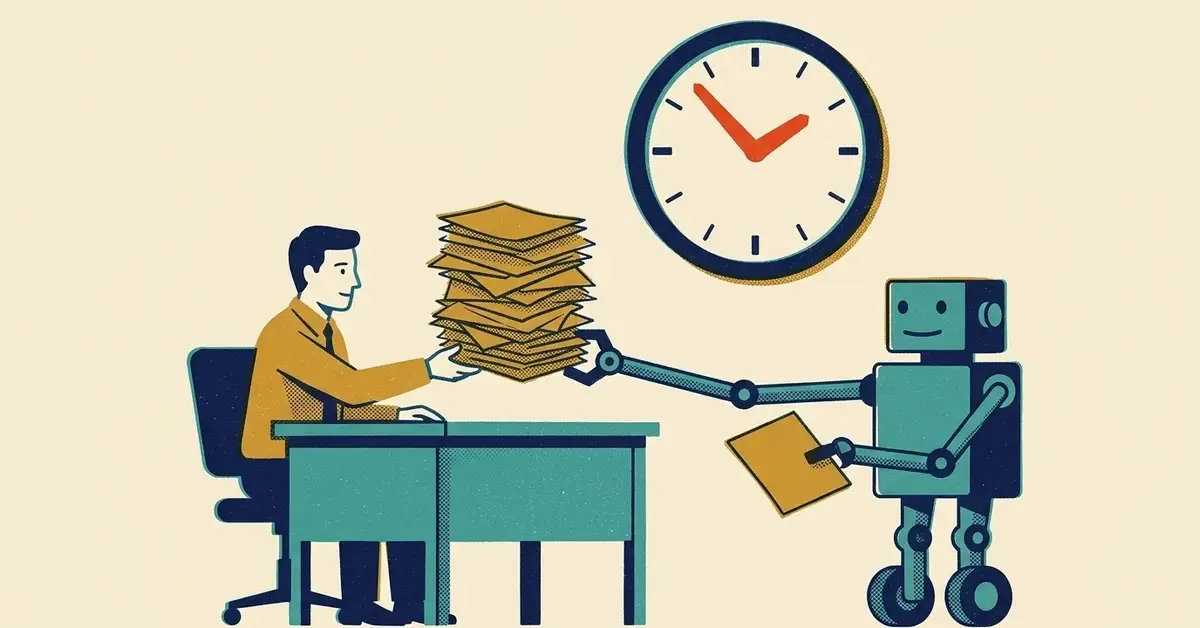
Nobody starts a business to write follow-up emails, tidy spreadsheets and type up meeting notes. But someone has to, and in a small business that someone is usually you.
So, can AI give you that time back?
Some of it. It depends on the task. AI is good at first drafts and summaries. It's bad at anything where you'd have to check every line anyway. And the time you save drafting can quietly go into checking.
This post sorts the common admin jobs into "saves time", "saves time if you check it" and "don't bother", shows what you probably already have, and gives you a simple way to find out whether it's working for you.
The quick answer
- Start with what you already pay for. Microsoft 365 and Google Workspace business plans both include some AI now.
- Use it for first drafts and summaries: email replies, meeting notes, turning rough notes into a checklist.
- Don't use it for anything you'd have to recheck line by line: invoice totals, dates, figures going to a client.
- Time one task for a week, before and after. If it isn't faster once you count the checking, drop it.
What you probably already have
Before you sign up for anything new, check your existing plan. As of October 2026:
Microsoft 365. Microsoft Copilot Chat (the chat assistant, until recently called Microsoft 365 Copilot Chat) is included at no extra cost with Business Basic, Business Standard and Business Premium, when you sign in with your work account. It can draft, rewrite and summarize text you give it. The fuller Copilot that works inside the Microsoft 365 apps and with your email, files and meetings is Microsoft 365 Copilot, a paid add-on license. Without it, which Copilot features show up inside the apps depends on your plan and your admin's settings.
Google Workspace. Gemini features in Gmail, Docs, Sheets and Meet are included in Workspace plans; check the plan comparison for which ones yours has. Google Meet's automatic note-taking ("Take notes for me") is on Business Standard and Business Plus, not Business Starter, and since August 2026 it works for in-person meetings too.
Use your work account, not a personal one. Business plans keep your data under your company's agreement with Microsoft or Google; free personal tools may use what you type to improve their models. More on that in Who Owns the Data I Feed Into AI?
Which admin tasks AI actually speeds up
Here's the honest breakdown for the jobs that eat most of a small office's week.
Task | Verdict | Why |
|---|---|---|
Replying to routine emails | Saves time | A draft from a few bullet points beats a blank screen. You still read it before sending. |
Summarizing long email threads or documents | Saves time | Fast way to find what matters. Open the original before acting on a detail. |
Meeting notes and action items | Saves time if you check it | Good first pass. Summaries can miss who agreed to what, or get a date wrong. |
Turning rough notes into a checklist or how-to | Saves time | Structure is what AI is best at. You supply the facts. |
Social media captions | Saves time if you check it | Quick drafts, but they drift off your voice and invent details. |
Scheduling meetings | Usually no | A booking page or shared calendar does this better. |
Invoices, totals and data entry | Don't bother | Every figure needs checking, so you've saved nothing. Use your accounting software's own automation. |
Anything with a legal or money promise | Don't bother | One wrong line costs more than the time saved. |
That pattern isn't just a hunch. When the UK's Department for Business and Trade trialed Microsoft 365 Copilot with its staff, its 2025 evaluation found Copilot performed best on written tasks such as drafting and summarizing, while scheduling and image generation took extra time. On the bigger question it was blunt: "We did not find robust evidence to suggest that time savings are leading to improved productivity." And its diary study relied on staff reporting their own time savings.
So the time is there. Whether it turns into anything depends on what you do with it.
Try it on one task this week
Pick one job you do every day. Email replies are a good start.
1. Time it as it is
For three days, note how long the task takes. A sticky note is fine.
2. Try it with AI
Open Copilot Chat or Gemini with your work account and paste in something like:
"Write a short, friendly follow-up email to a client I met yesterday about a quote for [job]. Mention that the quote is attached and that I'm happy to answer questions. Keep it under 100 words. Don't promise any dates or prices."
Then edit it so it sounds like you, and send it.
3. Time it again, including the checking
For the next three days, time the whole thing: writing the prompt, reading the draft, fixing it.
4. Do the math
If it saves you 20 minutes a day, five days a week, that's 100 minutes a week. Over 48 working weeks it comes to 80 hours a year. If it saves two minutes once you count the checking, it's not worth changing how you work.
For more ready-made prompts for emails, meeting notes and documents, see AI Prompts for Office Admin Work.
Why AI saves less time than you'd expect
- Checking eats the gains. AI writes confidently even when it's wrong. Anything with a name, number, date or promise needs a human read.
- Prompts take time to write. The first few take longer than doing the job yourself. Save the ones that work.
- The wrong tasks get picked. Scheduling and data entry often have better non-AI fixes already built into your software. How to Automate Repetitive Tasks With AI covers those.
If it's already gone wrong
AI sent the wrong price, got a date wrong in the meeting notes, or replied to the wrong person? Fix it directly with whoever received it, and add that task to your "always check" list. Some tasks shouldn't be handed off at all; What AI Tasks Should I Never Automate? has the list.
Setting it up for a small team
- One approved tool, on work accounts, so nobody pastes client data into a free personal app.
- A shared prompt list for the tasks that work, in a document everyone can open.
- One rule: AI drafts, a person sends. Nothing goes to a client unread.
- A check-in after a month: which tasks actually got faster? Drop the rest.
When to get help
- You're not sure which Copilot or Gemini features your plan includes, or they don't show up for your users.
- Staff are already using personal AI accounts for client work.
- You want AI connected to your email, calendar or files and need the permissions set up safely.
If any of that sounds familiar, we can help.



No comments yet