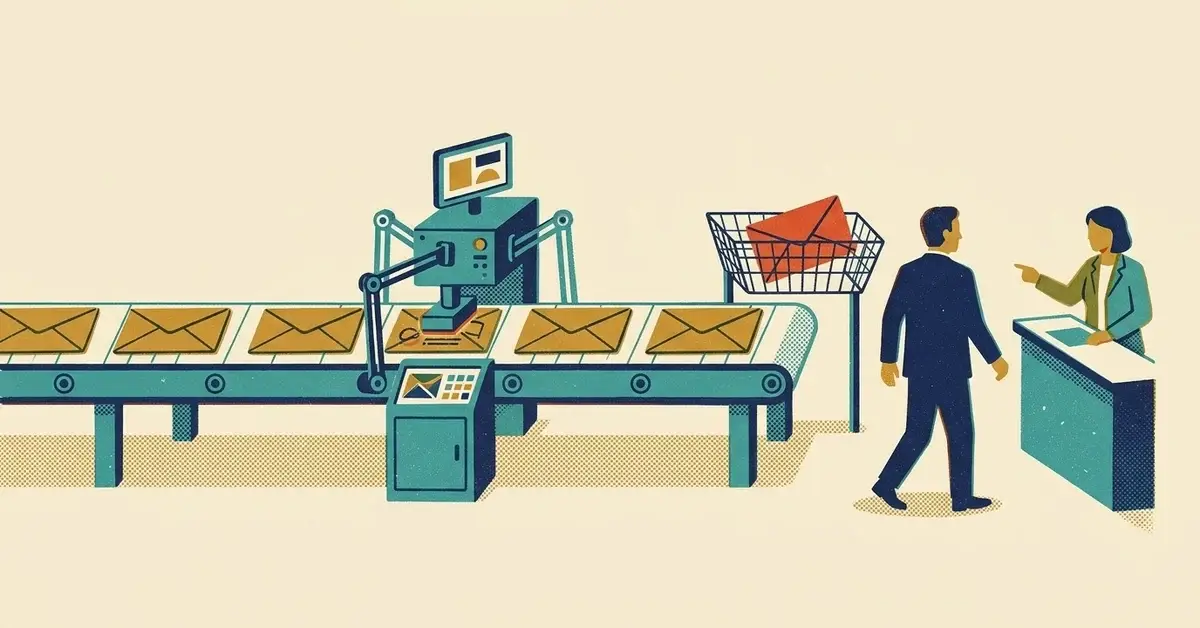
Same invoices to chase. Same "what time works for you?" emails. Same details typed from a web form into a spreadsheet, then into your accounting software.
None of it is hard. It just eats the hours you meant to spend on customers.
Most of it can run on its own. And a lot of the automation you need is already sitting in software you pay for.
The quick answer
- Spend one week writing down every task you repeat, with how long it takes.
- Pick the one that's most frequent and follows the same steps every time.
- Look for a built-in automation first: invoice reminders in your accounting software, a booking page in your calendar, templates in your email.
- Use a connector tool (Power Automate, Zapier or Make) only when two apps need to pass data between them.
- Use AI for the parts that need wording: drafting replies, summarizing, sorting. A person checks before anything goes to a customer.
Find your time drains first
Guessing is how people automate the wrong thing. Track it for a week instead.
Set up a simple spreadsheet with these columns:
Column | What goes in it |
|---|---|
Task | "Send invoice reminder", "Copy web form lead into CRM" |
How often | Times per week |
Minutes each | Your best estimate |
Same steps every time? | Yes or no |
Multiply how often by minutes each. Sort by the result.
The tasks at the top with a "yes" in the last column are your first candidates. Tasks that change every time (quoting a custom job, handling a complaint) aren't. That's where you're needed.
Check what your software already does
Before you sign up for anything new, check these. Most small businesses already pay for at least one.
Invoice reminders: QuickBooks Online
- Select the gear icon, then Account and settings.
- Open the Sales tab and edit the Reminders section.
- Turn on Automatic invoice reminders, then set Reminder 1: how many days before or after the due date.
- Add a second and third reminder if you want them, and edit each email's wording.
Two catches, per Intuit's help article: reminders only go out for invoices you've already emailed to the customer, and QuickBooks Online Advanced uses workflows for this instead. For the rest of the year-end chores, our year-end books checklist shows where AI helps.
Booking and appointment reminders: Microsoft Bookings
Included with Microsoft 365 Business Basic, Business Standard and Business Premium, per Microsoft's Bookings FAQ. Customers pick a time from your booking page, and Bookings sends the confirmation and email reminders.
- Open the app launcher in Microsoft 365 and select Bookings.
- Create a booking page and add each appointment type as a service.
- On each service's Notifications settings, add an email reminder. Microsoft's guide covers each option.
Text message reminders need a Teams Premium license on top. Email reminders don't. On Google Workspace, Google Calendar's appointment schedules do the same job.
Reply templates: Gmail
- Select the gear icon, then See all settings.
- Open the Advanced tab and enable Templates. Save changes.
- Write a reply you send often, then in the compose window open the three-dot menu > Templates > Save draft as template.
Next time, insert it from the same menu and change the name. Google's steps: create email templates in Gmail. Templates aren't available in the Gmail mobile app.
Task boards: Trello
Trello's built-in automation (rules, card buttons and board buttons) is on every plan, with a monthly limit on runs that goes up on paid plans, per Atlassian's automation limits page. A common first rule: when a card moves to "Done", mark the due date complete and notify the person who asked for it.
When two apps need to talk: connector tools
Built-in automation only works inside one app. When the job is "new web form lead → add to spreadsheet → email me", you need a connector.
- Power Automate comes with Microsoft 365 business plans. Those licenses include automated, scheduled and button flows with Microsoft's standard connectors (Outlook, SharePoint, Excel, Teams and many others), but not premium connectors, per Microsoft's Power Automate licensing FAQ. Start here if you're on Microsoft 365.
- Zapier and Make (called Integromat until 2022) connect thousands of apps without code. Each automation is a trigger ("new form entry") followed by one or more actions ("add a row", "send an email").
Build one, test it with a fake entry, and watch it for a week before you build the next.
Where AI actually helps
Plain automation follows rules. It's perfect for "every time X happens, do Y."
AI earns its place where the task needs wording or judgment:
- Drafting replies to common inquiries, from your own notes and past answers.
- Summarizing a long email thread or call notes into next steps.
- Sorting incoming messages or form entries by type, so they go to the right person.
- Writing first drafts of social posts or a monthly update.
Microsoft Copilot, Google Gemini and ChatGPT all do this. Zapier and Make also let you add an AI step inside an automation, such as "summarize this form entry" before it lands in your inbox.
Two rules before you hand anything over:
- A person checks anything AI writes before a customer sees it. AI tools state wrong things with total confidence.
- Use business accounts, not free personal ones, for anything with customer details. More on why: are free AI tools safe for client data?
If an automation goes wrong
It will, eventually. A form field gets renamed and the automation stops. A reminder goes to a customer who already paid.
- Turn it off first, then fix it.
- Check the history. Power Automate, Zapier and Make all keep a run history that shows which step failed.
- Keep a list of every automation, what it does and who set it up. The person who built it won't always be around when it breaks.
Make it stick in your business
- One owner per automation. Someone checks it monthly.
- One new automation at a time. Get it working before adding the next.
- Review connected apps every quarter and remove what you don't use. Every connection is access to your data. More on that: your AI toolchain is a security hole.
- Redo the time audit every six months. The drains move.
When to get help
- The job needs data moving between three or more systems.
- You want automations connected to Microsoft 365 or Google Workspace and aren't sure what permissions they'll get.
- Something already set up keeps breaking and nobody knows who built it.
If you'd like help picking what to automate first, talk to us.



No comments yet