On July 19, 2024, millions of Windows computers crashed to a blue screen and wouldn't start again. Airlines, banks and plenty of small shops lost their PCs at the same moment.
It wasn't an attack. It was a security product's routine update.
Here's the deal: the same thing can happen to any business, with any vendor, on any morning. The question isn't whether your security software will ever push a bad update. It's whether you could get your office working again by lunch if it did.
What happened
- At 04:09 UTC on July 19, 2024 (just after midnight on the U.S. East Coast), CrowdStrike pushed a content configuration update to its Falcon sensor for Windows. A flaw in that update crashed Windows, according to CrowdStrike's preliminary post-incident review.
- Microsoft estimated that 8.5 million Windows devices were affected, less than one percent of all Windows machines. The damage was out of proportion because so many of those machines ran critical services.
- The fix meant starting each PC in Windows' recovery mode and deleting the bad file by hand. On computers encrypted with BitLocker, that first meant typing in a 48-digit recovery key. One PC at a time.
CrowdStrike reported that about 99% of affected Windows sensors were back online by July 29, ten days later. For a lot of businesses, the hard part wasn't the bad file. It was finding the recovery keys and the people to type them in.
Why it took down so much at once
Security software that protects a computer from deep threats has to run deep inside Windows. That's what makes it effective. It's also why a bad update can stop the computer from starting at all.
Then add automatic updates. Your security tools update themselves, often many times a day, so they can catch new threats quickly. That's the right call for protection. It also means a mistake reaches every machine at once.
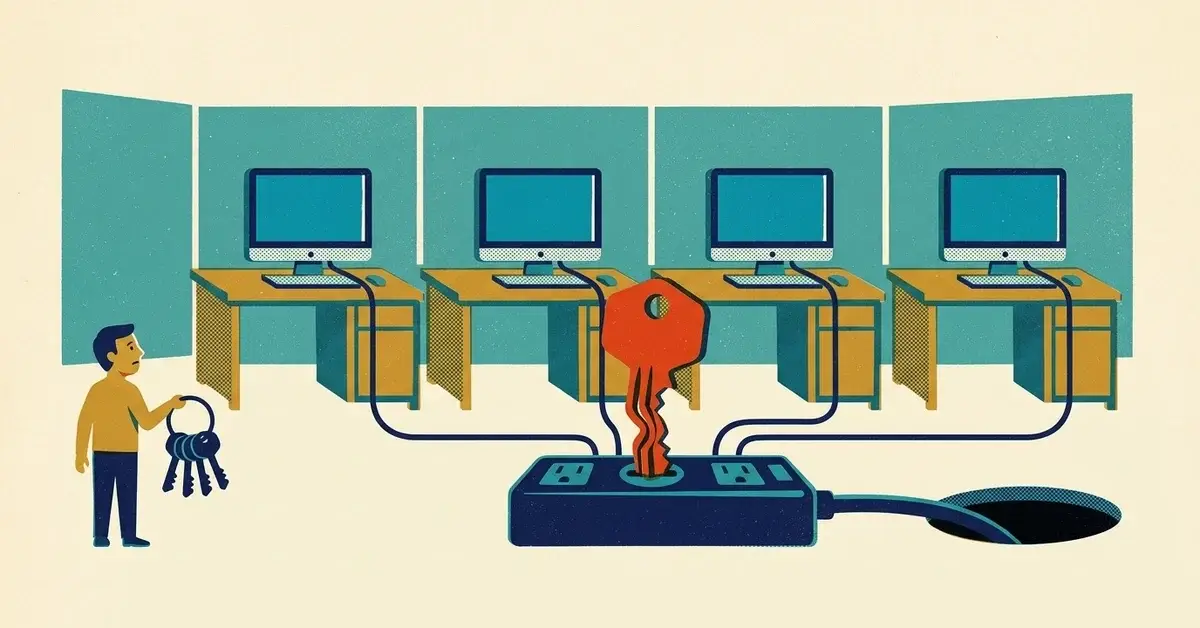
That combination is a single point of failure: one thing that, when it breaks, takes everything else down with it. Think of a building where every door uses the same key, and someone hands out a key that jams every lock.
The lesson isn't "don't use security software". Going without it is the bigger risk by a long way. The lesson is to plan for the day one trusted piece breaks.
Five things to set up now
1. Know where your BitLocker recovery keys are
This one bit people in 2024: CrowdStrike warned that BitLocker-encrypted PCs might need a recovery key to fix. If your recovery keys live on a server that's also down, you can't get to them. Keep keys somewhere independent of the systems they unlock.
Check where yours live:
- Work PCs signed in with Microsoft 365 (Microsoft Entra ID): Microsoft recommends storing keys in Entra ID or Active Directory so an admin can look them up. Users can find their own at myaccount.microsoft.com > Devices > View BitLocker Keys.
- PCs set up with a personal Microsoft account: the key is usually saved to that account, at account.microsoft.com/devices/recoverykey.
Then make sure at least two people can get to those keys from a phone or a computer that isn't one of the office PCs. Microsoft's own guidance says a recovery key can't be stored on the encrypted drive itself. The same thinking applies to your whole office: keep the keys outside the thing they unlock.
If you're not sure BitLocker is even on, our BitLocker guide covers it.
2. Make sure your files live somewhere other than the PC
If a computer won't start, the fastest fix is sometimes to hand that person another one. That only works if their files are in OneDrive, SharePoint, Google Drive or a backup, not just on the desktop.
Our 10-minute backup check walks through it.
3. Ask your vendors how their updates roll out
You don't need a test lab. You need answers to three questions from whoever provides your security tools, or from your IT provider:
- Which updates install automatically, and how often?
- Can we hold back some updates, or send them to a few computers first?
- If an update breaks our computers, how will you tell us, and what's the fix process?
That second question matters more than it sounds. CrowdStrike customers could set their computers to stay one or two versions behind the newest sensor software. CrowdStrike's review explains that the July update wasn't a new sensor version but a separate, frequent kind of content update, so that setting didn't hold it back. CrowdStrike committed in the same review to giving customers control over when and where those content updates are deployed.
The point for you: know what your settings actually control.
4. Write a half-page "every PC is down" plan
It doesn't need to be a binder. One page, printed, kept somewhere that isn't a computer:
- Who to call: your IT provider's emergency number, and a backup.
- Who has the recovery keys and how to reach them.
- How you'll keep taking money: a card reader on a phone, manual invoices, whatever works for you.
- How you'll tell customers: a short message you can post or text.
- Which computers come back first: the till, the scheduling PC, the one that runs payroll.
Ready.gov, the U.S. government's preparedness site, has a free business continuity plan template and a business impact analysis worksheet if you want more structure.
5. Practice it once
Pick one PC and pretend it won't start. Can you find its recovery key in under ten minutes? Can that person work from another device by lunchtime?
The first time you try this shouldn't be the day it's real.
If it happens to you
- Check the news and your vendor's status page first. If thousands of businesses have the same blue screen, it's not you, and the vendor will publish a fix. If it's only one PC that keeps crashing, our guide to finding the cause of Windows crashes is the place to start.
- Don't wipe or reinstall in a panic. In 2024 the fix was deleting one file. Reinstalling would have cost far more time.
- Watch for scam "fixes". Any big news event is a gift to scammers, so expect emails and calls offering help. Get the fix from your vendor or your IT provider directly.
- Start with the computers that earn money. Then work outward.
When to call someone
- More than one or two computers won't start and you don't know why.
- You can't find the BitLocker recovery keys.
- You don't know which security tools are on your PCs, or who manages them.
If any of that's you, we can help you get a plan in place before you need it.
Related reading
- When the Cloud Goes Dark: What the October 2025 AWS Outage Means for Your Business
- Do Your Backups Actually Protect You From Ransomware? A 10-Minute Check and the 3-2-1 Rule
- Windows Theft Protection with BitLocker: The Essential Guide for Small Businesses
Originally published July 28, 2024. Updated October 2026.





No comments yet