
Someone searches for what you do. Google shows a map and three businesses. They look at the photos, skim the reviews, check you're open, and tap call.
They never saw your website.
For a lot of local searches, your Google Business Profile is the first thing people judge you on, and sometimes the only thing. So treat it like a small website: something you keep current, not something you set up once.
This post gives you the ten updates that matter most for calls, messages and bookings, with where to click for each.
The quick answer
If you have 30 minutes this week, do these in order:
- Check your primary category is the most specific one that fits.
- Add your services, in the words customers use.
- Fix your hours and add special hours for the next holiday.
- Set your service area (if you go to customers).
- Add five real photos of your work.
- Ask every customer for a review this week.
- Reply to your last ten reviews.
- Turn on chat (text or WhatsApp) if it's offered to you.
- Add a booking link if people book appointments.
- Check Performance once a month.
The rest of the post covers each one.
Why your profile matters this much
Google says local results are based mainly on three things: relevance, distance and prominence (Google Business Profile Help).
- Relevance is how well your profile matches the search. That's categories, services and description.
- Distance is how far you are from the searcher. You can't change it.
- Prominence is how well known you are, which includes links to your website and your reviews.
The same page says there's no way to pay for a better local ranking. So the profile itself is what you work on.
1. Pick the right primary category
Your primary category tells Google what your business is. Google's advice is to pick the most specific option that fits: "Nail salon," not "Salon" (Google: edit your category).
Add a few additional categories only for real departments or services. Not one per product.
Where: your Business Profile > Edit profile > next to Business category, select edit.
One warning: changing a category can trigger re-verification. Do it when you have time to deal with that.
2. Fill out services like a menu
Most profiles stop at the category. Add each service you actually offer, named the way a customer would type it ("water heater replacement," not "plumbing solutions").
Where: your Business Profile > Edit services. Pick from Google's suggestions or add a custom service, with a short description of each (Google: manage your services).
Google's system auto-rejects custom services that include prices or phone numbers, so keep those out of the service name.
Want to go further? The products and services fields have their own post.
3. Get hours right, including holidays
Wrong hours cost you twice: the customer who drives over to a locked door, and the review they leave about it.
- Regular hours: Edit profile > Hours.
- Special hours for holidays and one-off closures: Edit profile > Hours, then the edit icon next to Special hours (Google: set special hours).
Special hours only show if your regular hours are set to "Open with main hours."
Check your hours match your website, Facebook page and anywhere else you're listed. Mismatched business info confuses customers and Google alike.
4. Set your service area
If you go to customers, set the areas you serve by city or ZIP code. You can't draw a radius.
Google's rules, per its service area help page:
- Up to 20 service areas.
- The overall area shouldn't extend more than about two hours' drive from your business.
- If customers don't come to your address, remove it from the profile.
Where: Edit profile > Location, then edit next to Service area. Changes can take up to 48 hours to show.
5. Use photos as proof
Photos aren't decoration. They're how someone decides you're real.
Add the ones that answer "can they actually do this?":
- Finished jobs.
- Before and after.
- Work in progress.
- Your team, truck or storefront.
- What the customer will see when they arrive.
Real photos from your phone beat stock images. Add a few every month rather than twenty once.
6. Ask every customer for a review
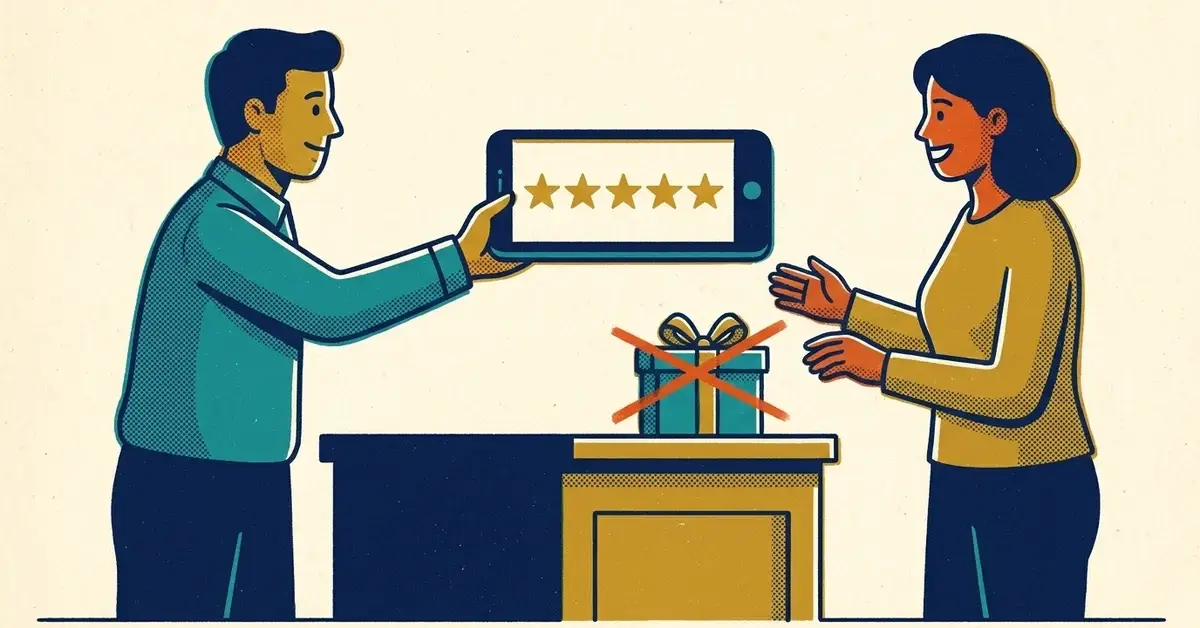
Google says more reviews and positive ratings can help your local ranking (Google Business Profile Help). They also take the hesitation out of choosing you. Here's how to ask for Google reviews without breaking the rules.
Two rules matter:
- Ask everyone, not only the customers you think are happy. Google's Maps content policy doesn't allow businesses to selectively ask for positive reviews or discourage negative ones (Google Maps user-contributed content policy).
- No incentives. Discounts or freebies in exchange for a review count as fake and misleading content (Google: tips to get more reviews).
Make asking a habit. A text after every job:
Thanks for choosing us today. If you have a minute, we'd appreciate an honest review on Google: [your review link]
If reviews you've earned aren't appearing, this post explains why.
7. Reply to reviews like a person
Google's own advice on replies (tips to get more reviews) comes down to:
- Short, polite and relevant.
- Not the same thank-you pasted under every review.
- No ads or deals in the reply.
- On a bad review: no personal details, no attacks. Apologize where it's fair, and offer to sort it out by phone or email.
People read the replies as much as the reviews. A calm answer to an angry review often does more for you than five stars.
8. Turn on chat, if it's offered
Google's original Business Profile chat ended on July 31, 2024 (Google's notice). In its place, Google now lets some profiles add a Chat option that sends customers to your text messages or WhatsApp.
Where: your Business Profile > Edit profile > Contact, then edit next to Chat, choose Text message or WhatsApp, and add the number or link (Google: chat with customers).
Google says it's only available in select regions, so you may not see it yet. If you add both options, only text message shows.
Only turn it on if someone will actually answer. An unanswered message is a lead walking to the next listing.
9. Add a booking link
If customers book appointments, let them do it from the profile.
Where: your Business Profile > Bookings > Get started, then pick a supported booking provider. Or add your own booking link (Google: bookings through a provider).
A provider can take up to a week to appear on your profile. Check what your provider charges first; Google notes they may.
Fewer back-and-forth calls. A clearer next step.
10. Answer the common questions up front
Google has been changing the public Questions & Answers section. It discontinued its Q&A API on November 3, 2025 while it updates how Q&A works, according to Google's developer documentation, and some profiles no longer show a place to ask or answer questions.
So put the answers where Google and customers can still find them:
- Your business description (under Edit profile): what you do, who for, where. No links or prices; Google's guidelines keep it to describing the business.
- Your service descriptions (step 2).
- An FAQ on your website covering service area, turnaround time, what's included and how booking works.
Google Maps also has Ask Maps, an AI feature that answers questions about places (Google Maps Help). The more complete your profile, website and reviews are, the more there is for it to draw on.
Bonus: post updates with a purpose
Posts still show on Search and Maps. Where: your Business Profile > Posts > Add post, then choose Update, Offer or Event (Google: posts).
Google archives posts older than six months unless you set a date range, so a post from last year isn't doing much.
Good uses:
- Recent jobs, with a photo.
- Seasonal reminders.
- "What to expect" tips.
- Limited availability, only when it's true.
How to tell it's working
Website traffic doesn't tell the whole story anymore. Someone can choose you without ever clicking through.
Check Performance in your Business Profile once a month (Google: profile performance). Watch:
- Calls
- Directions
- Website clicks
- Messages and bookings, if you've set them up
Write the numbers in a simple spreadsheet: month, calls, directions, website clicks, bookings, reviews added. Three months in, you'll see which changes moved anything.
When to get help
- Your profile is suspended, or you can't get it verified.
- Someone else controls the profile and won't hand it over.
- You've done all ten and calls haven't moved in three months.
If you'd like us to take a look, get in touch.



No comments yet