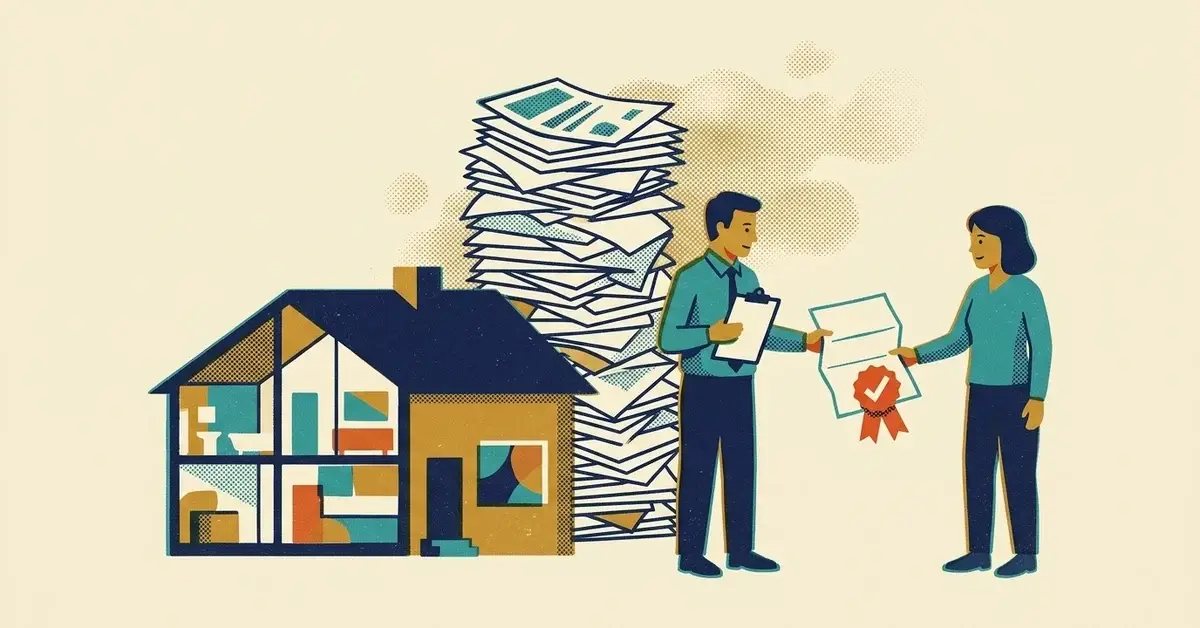
You send the report. Pages of findings and photos, every one written carefully.
An hour later the buyer calls. "Should we walk away?" The agent texts asking for "the short version." The seller's side wants to know why you called something a safety concern.
The report did its job. The explanation around it didn't.
That gap costs you time on the phone, repeat questions, and sometimes a frustrated review from someone who just didn't understand what they were reading. AI can help close it. Not by changing your findings, but by drafting the plain-English communication around them, which you then check and send.
The quick answer
- Finish the report first. AI never writes or edits findings.
- Use a business AI account, not a personal free one, before pasting anything from a client's report.
- Paste one finding at a time and ask for a plain-English version that keeps the meaning.
- Read every draft against the report. Nothing added, softened or exaggerated.
- Save the drafts you approve as templates, so next time you start from your own wording.
What AI should and shouldn't do
Draw this line before anyone on your team opens an AI tool.
AI can help draft:
- plain-English explanations of findings
- a short summary that points clients to the full report
- follow-up emails after the report goes out
- versions of the same explanation for a buyer, a seller and an agent
- FAQ answers for the questions you hear every week
- pre-inspection instructions
AI should never:
- change, remove or reword a finding in the report itself
- downplay a safety concern or turn "further evaluation" into "probably fine"
- guess at repair costs or promise outcomes
- diagnose beyond what you observed
- give negotiation or legal advice
- invent details that aren't in your notes
- send anything to a client without you reading it first
AI drafts. You approve. That's the whole rule.
Before you paste a client's report anywhere
Inspection reports carry addresses, client names and photos of the inside of someone's home. Where you paste them matters.
- ChatGPT, personal plans (Free, Go, Plus, Pro): OpenAI's help center says conversations can be used to train its models unless you turn off Settings > Data controls > Improve the model for everyone (OpenAI: data controls).
- ChatGPT business plans (Business, Enterprise): OpenAI says it doesn't use business inputs or outputs to train its models by default (OpenAI: how your data is used).
- Microsoft Copilot Chat with a work account: Microsoft says prompts and responses get enterprise data protection and aren't used to train the underlying foundation models. In the Edge sidebar, sign in with your work account and look for the shield icon at the top, which confirms enterprise data protection.
Even on a business plan, strip what the AI doesn't need. It doesn't need the client's name or the street address to explain moisture staining. Use "the client" and "the property," then add the details back in your own email.
Six ways to use AI around the report
1. Turn a finding into plain English
Take a finding like this:
"Evidence of moisture staining observed at ceiling area adjacent to HVAC supply register. Recommend further evaluation by qualified contractor."
A client-friendly version might read:
"There are signs of past or possible moisture near the air vent in the ceiling. That doesn't automatically mean there's an active leak, but a qualified professional should check it so the cause can be confirmed."
The prompt:
Rewrite this home inspection finding in plain English for a homebuyer. Don't change the meaning. Don't downplay the concern. Don't add repair costs or guarantees. End with one simple next step based only on the original finding.
2. Write a summary that points back to the report
Clients want the short version. Give them one that sends them back to the full report, not one that replaces it.
Create a short client-friendly summary from these inspection notes. Group items as: safety concerns, items needing further evaluation, maintenance items, general observations. Don't remove important details. Don't rank severity unless the notes clearly state it. End with a note that the client should read the full report, including photos.
3. Draft the follow-up email
Send it with the report, so the first questions come in writing instead of as a panicked call.
Write a follow-up email from a home inspector to a client after delivering an inspection report. Tone: calm, professional, helpful. Ask them to review the full report, including photos. Say some items may need further evaluation by a specialist. Offer to clarify what a finding means. Don't give negotiation advice. Keep it under 120 words.
4. One explanation, three audiences
A buyer needs clarity. A seller needs a neutral tone. An agent needs the next steps, fast.
Rewrite this inspection explanation three times: for the buyer, for the seller, and for the real estate agent. Keep the facts and the recommendation identical in all three. Don't add pricing, negotiation advice or promises.
5. Explain the terms clients misread
"Recommend further evaluation" is the big one. Clients hear "the inspector missed something" or "this is serious." Build a short, approved explanation for each term you use often: further evaluation, monitor, maintenance item, limited visibility, inaccessible area, safety concern, deficiency, serviceable.
Explain the inspection term "[term]" in plain English for a homebuyer. Keep it neutral and professional. Don't create panic, and don't minimize it. Include one simple example.
6. Build an FAQ from the calls you already get
Write down the questions you hear every week. "Is this normal for an older home?" "Who fixes this?" "What do I do first?" Then:
Create FAQ answers for home inspection clients from these questions. Tone: calm, plain English, professional. No legal advice, repair estimates or negotiation advice. Encourage clients to read the full report and consult qualified professionals when needed.
Approved answers can go on your website, in follow-up emails and in a handout for agents. We have a step-by-step guide on building a client FAQ page with AI.
A simple weekly workflow
- Finish the report without AI.
- Flag the three to five findings clients are most likely to ask about.
- Draft explanations with the prompts above.
- Check each draft against the report, line by line. Did anything get softer? Did anything get added?
- Save approved wording in a shared document, one heading per common finding.
- Reuse and refine. When a new question comes up twice, add an answer.
After a few months, most of your explanations come from your own library, not a fresh AI draft. That's faster and safer.
Why this works
Clients don't read reports the way inspectors do. You see observations, conditions and recommended next steps. They see one question: is this house a problem?
Plain-English follow-up answers that question without changing a word of your findings. And because your approved library is built from your own wording, every client gets the same clear explanation, no matter who on your team sends it.
Keeping it safe in a business
If more than one person sends client messages, write down a short AI policy. It should answer:
- Which AI tools and accounts staff can use (business accounts only).
- What can be pasted in, and what never is (client names, addresses, payment details).
- Who reviews AI drafts before they go to a client.
- Which messages need the owner's sign-off, like anything about a safety concern.
One rule for everyone: AI never touches the report itself.
When to get help
You can set this up yourself. Bring someone in if:
- You're not sure which AI accounts your team is using, or whether client data is going into personal ones.
- You want AI tools connected to your email or report software and need the permissions set up properly.
- A client message went out with something the AI made up, and you need to fix it fast. Start with what to do when your AI sent the wrong info to a client.
If you want help setting up business AI accounts the right way, talk to us.
Related reading
- How to use AI to build a client FAQ page in under an hour
- Your AI assistant might be sharing secrets: here's how to stop it
- How do I stop AI from hallucinating in my business documents?
Originally published August 2026. Updated November 2026.




No comments yet