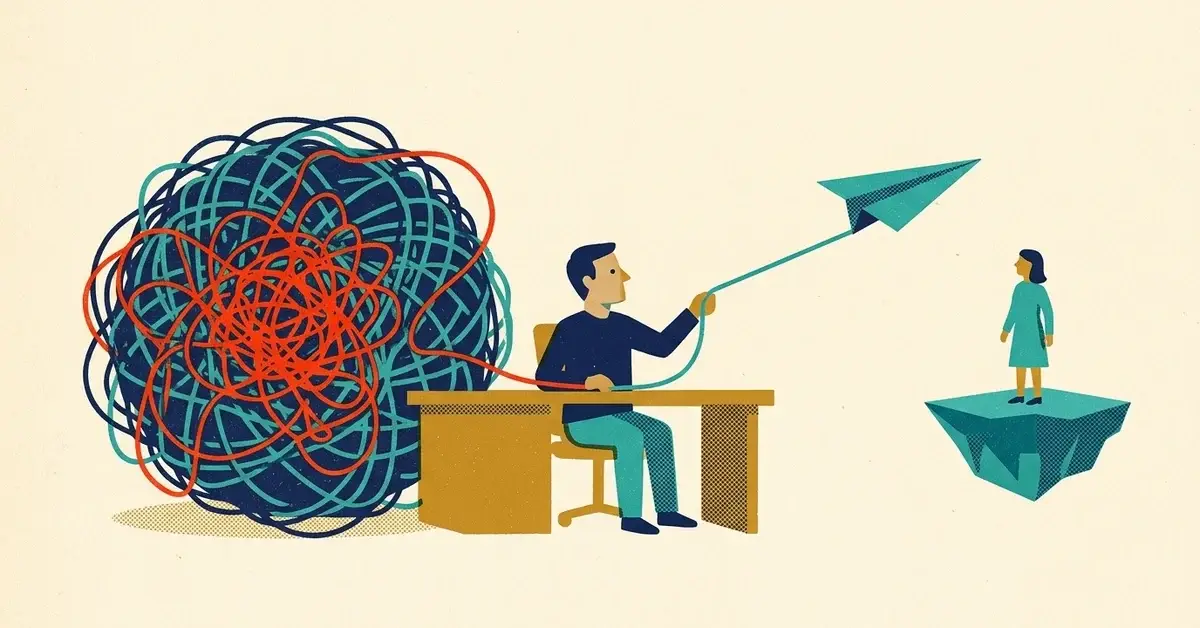
A job runs long. A supplier slips. The customer changes their mind halfway through. Now the project is messy and the client is getting nervous.
You know you should send an update. You also know whatever you write could get read as a promise.
AI can draft that update in a minute. The catch: chatbots like to sound sure of themselves, and a confident sentence about a date reads like a commitment. So the job is to let AI handle the wording while you keep hold of the facts.
The quick answer
- Write down the real facts first: what changed, what it affects, the next step and when.
- Paste those notes into your AI tool with the prompt below. It tells the AI not to invent dates, prices or promises.
- Read the draft for "promise words" (list further down) and swap them for honest ones.
- End with one question the client can answer in a line.
- Send it the same day the plan changes.
That's it. The rest of this post is the prompt, five templates and the checks.
What a good client update does
Clients rarely get upset because a project changed. They get upset because they don't know what's going on, and silence lets them fill in the blanks.
A good update does four things:
- Says what changed, without drama.
- Explains why, in one plain sentence.
- Gives the next step, specific and dated where you can.
- Asks one clear question, so they reply.
Fix the silence and most of the anxiety goes with it.
The rule that stops overpromising
AI writes the message. A person approves timelines, scope and anything that costs money.
In practice:
- AI handles tone and structure.
- You supply the facts and the actual next step.
- AI doesn't get to invent dates, guarantees or "we will" statements.
One more rule before you paste anything. Strip out what the AI doesn't need: the client's full address, account numbers, anything personal. A first name and the project type are plenty. If you're not sure what your AI tool keeps, read Are Free AI Tools Safe for Client Data? first.
The five-part update format
Use the same shape every time. Clients learn where to look.
1. Status line
One sentence that says what this is.
"Quick update on your [project] at [location]."
2. What changed
One sentence. No blame, no backstory.
"We ran into [issue] that affects the timeline."
3. What it means
One sentence on the impact, as a range.
"This may add about [range] to the schedule, depending on [factor]."
4. Next step
The part the client actually cares about.
"Next, we're doing [next action] on [day or time window]."
5. One question
Something they can answer in a line.
"Does that plan work for you, or would you prefer [option]?"
The AI prompt
Paste your rough notes under this and run it in whichever assistant your business already uses (ChatGPT, Copilot, Gemini, Claude). The wording works the same in all of them.
Write a short client update from my notes below, in this order: 1) one-line status, 2) what changed, 3) what it means, using estimated ranges and no guarantees, 4) the next step, 5) one question for the client. Tone: calm, direct, respectful. Rules: do not invent dates, prices, deadlines or promises. If a detail is missing from my notes, write [NEED INFO] instead of guessing. Keep it under 120 words.
Notes: [paste here]
The [NEED INFO] line matters most. Without it, a chatbot fills gaps with something plausible, and "plausible" is how a made-up Friday deadline ends up in a client's inbox. More on that habit, and how to stop it, in our post on AI making things up in business documents.
Five copy-and-paste templates
Fill in the brackets yourself, or have the AI fill them from your notes and then check every one.
Template 1: A delay (weather, scheduling, supplier)
Subject: Quick update on [project]
Hi [Name],
Quick update on your [project]. We've hit a delay because of [reason].
What this means: it may push the timeline by about [range], depending on [factor].
Next step: we're scheduled to [next action] on [day or time window].
Does that work for you, or would you prefer we aim for [other window]?
Thanks,
[Your name]
Template 2: You found an unexpected problem
Subject: Update: something we found on [project]
Hi [Name],
While working on your [project], we found [issue].
There are two ways to handle it:
Option A: [basic fix]. Quicker, smaller change.
Option B: [fuller fix]. Lasts longer, may add time and cost.
Next step: reply with A or B and we'll go from there. Happy to do a quick call if that's easier.
Thanks,
[Your name]
Template 3: The client asked for a change
Subject: Confirming the change to [project]
Hi [Name],
Confirming the change you asked for on [project]: [change].
What this means: it may change the timeline and the cost, depending on [factor].
Next step: we'll send updated options by [time window] for your OK before we start on it.
Is there a deadline we should plan around?
Thanks,
[Your name]
One rule here: don't start the changed work until the client has replied to the updated options in writing. An email reply counts. A "sure, sounds good" on a phone call is easy to remember differently a month later.
Template 4: You're waiting on the client
Subject: One item needed to keep things moving
Hi [Name],
We're ready for the next step on your [project], but we need [item or information] from you first.
Once we have it, we can [next action] within [time window].
Can you send it today, or let me know when you'll have it?
Thanks,
[Your name]
Template 5: You got something wrong
Subject: Update and next step on [project]
Hi [Name],
We missed the mark on [issue], and I'm sorry for the trouble.
Here's what we're doing to fix it: [corrective action].
Next step: [time window or appointment options].
Does [Option A] or [Option B] suit you better?
Thanks,
[Your name]
It owns the mistake without writing a blank check. If the AI version adds "free of charge" or "at no cost to you", that's a decision for you, not the chatbot. AI Promised a Refund You Never Offered? covers what to do when that slips through.
Check the draft for promise words
Before you send any AI-assisted update, search the draft for these:
- guarantee
- definitely
- no problem
- we will be done by
- final
- always / never
- no delays
Swap them for wording that's honest about what you know:
- estimated
- we're aiming for
- typically
- based on what we know today
- the next step is
- we'll confirm after [event]
Confident is fine. Certain about things you can't control gets expensive.
Why two options work
A client hearing bad news feels like they've lost control. Two clear choices hand some of it back:
- Option A: quicker or simpler.
- Option B: more thorough, more time or cost.
Even when the news is bad, options read as "we've thought about this." Keep it to two. Three starts to feel like homework.
Make it a habit, not a one-off
One rule for the whole team: if a job slips by more than a day, the client hears about it that day.
Even when there's nothing new: "Still on track for [step]. Next update [day]."
Save the prompt and the five templates where everyone can find them: a shared document, your email tool's saved replies, or your project software's message templates. Then the update doesn't depend on whoever happens to be least busy.
You can also save the prompt inside the assistant so nobody has to retype it. As of November 2026, Gemini calls this a Gem: Google's help page says to give it a name and instructions, then click Save. In Claude it's a project with project instructions, and on Team and Enterprise plans you can share that project with the rest of the team.
If an update already went wrong
If an AI draft went out with a date or a promise you can't keep, correct it quickly and in writing. Say what was wrong, give the accurate version, and don't bury it. AI Sent the Wrong Info to a Client? walks through what to do next.
When to get help
- You'd like the templates built into your email or project tools so the team uses them without thinking.
- You're not sure which AI tools are safe to paste client details into.
- AI drafts keep going out unchecked and you want a review step that actually happens.
If you'd like a hand setting that up, talk to us.
Related reading
- AI Sent the Wrong Info to a Client? What to Do Now
- AI Promised a Refund You Never Offered? What to Do
- How Do I Stop AI From Hallucinating in My Business Documents?
Originally published June 2026. Updated November 2026.




No comments yet