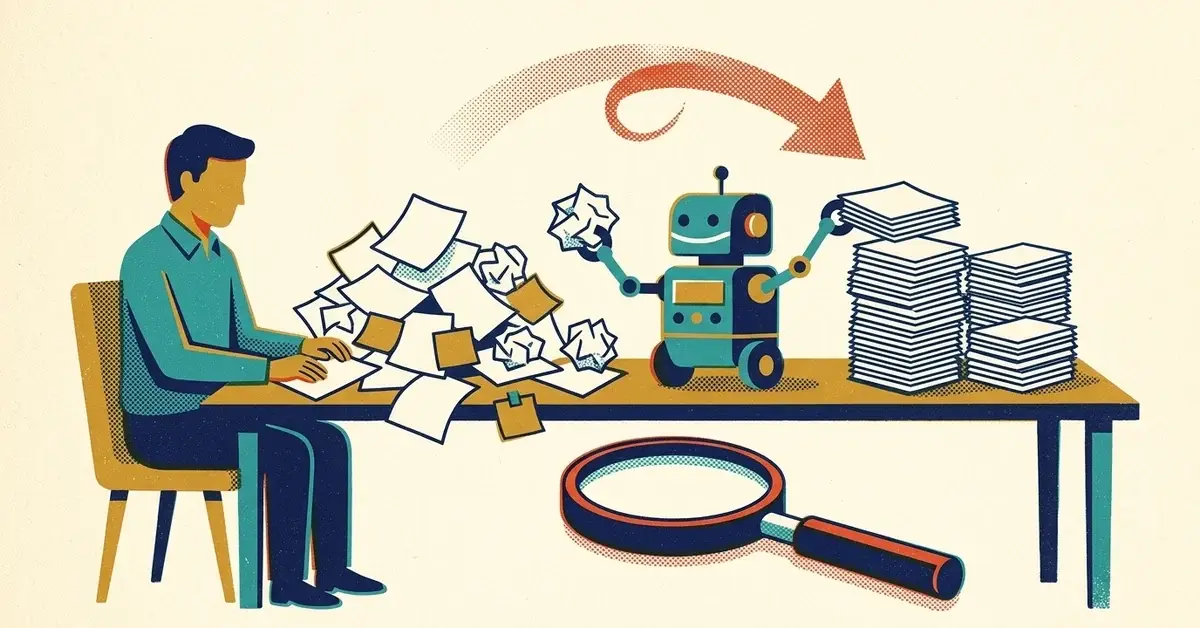
It's 4pm. There's an email you've been avoiding since Tuesday, a renewal letter you've read twice and still don't follow, and a supplier quote you need to understand before tomorrow.
ChatGPT can help with all three. Not by doing the job for you, but by getting you from blank page to decent draft in a couple of minutes, so you spend your time on the part that needs you: checking it and making the call.
This post covers seven everyday jobs it handles well, a prompt for each, what to check before anything leaves the building, and the account question to settle first.
The quick answer
- Use a business account, not a personal one, for anything that touches clients or company details. Or use the AI you already pay for (more on that below).
- Tell it who you are once, in a short "about my business" note you paste in or save, so you're not starting from zero every time.
- Give it the source material. Paste the email thread, the notes, the quote. It's good at working with what you give it and unreliable at filling gaps.
- Ask for a draft, then check names, numbers, dates and promises against the original before you use it.
First: which account?
This matters more than which prompts you use.
A personal ChatGPT account and a business plan don't handle your data the same way, and OpenAI changes plan names and features often, so check OpenAI's own help center for what your plan does today rather than trusting a blog post (this one included). The questions to answer, and where the settings usually live, are in Is Free ChatGPT OK for Business? What "Free" AI Really Costs and What AI Tools Should My Employees Use Without Getting in Trouble?.
And check what you already have. If your business is on Microsoft 365 Business Basic, Business Standard or Business Premium, Microsoft says Copilot Chat is included at no extra cost when you sign in with your work account. Every job below works there too.
Two settings to check on whichever account you use: whether your chats train the model, and what it remembers about you between chats. Can a website make ChatGPT remember it? shows where the memory list lives in ChatGPT and Copilot, and how to clear it.
Set it up once: the "about my business" note
Write five or six lines and keep them in a document:
"I run [business], a [number]-person [type of business] in [town]. Our customers are mostly [who]. We write in a [friendly, plain, no-jargon] tone and sign emails [name]. Our hours are [hours]. Never promise dates, prices or results in drafts; leave a [BRACKET] where one is needed."
Paste it at the top of a new chat (or save it as standing instructions, if your ChatGPT plan offers that) so every answer starts from your business instead of a generic one. Keep client details out of it.
Seven everyday jobs, with prompts
Typing up meetings isn't on this list. That's an office job with its own tools in Teams and Google Meet, covered in AI prompts for office admin work.
1. Answer the email you've been avoiding
Paste the thread (take out account numbers and anything personal you don't need) and say what you want to happen.
"Here's an email thread with a customer who's unhappy about a delay. Draft a reply that apologizes once, explains the new date is [DATE], and offers a call. Under 120 words. Don't offer a discount."
Check: the date, the customer's name, and that it doesn't promise anything you didn't put in the prompt.
The other email people put off: telling customers your prices are going up. You decide the number and the date. ChatGPT only writes the words.
"Write a short email telling our regular customers that our [service] price goes from [old price] to [new price] on [date]. One sentence on why: [reason]. Say what isn't changing. Thank them once. No apology paragraph, no 'unfortunately', no discount offer. Under 130 words."
Check: both prices and the date against your own price list, and that it didn't add a promise you never made, like "no more increases this year". If the customer you're answering is angry rather than just waiting, use the de-escalation prompts in AI copied your client's tone and now you sound rude instead.
2. Make sense of a confusing quote or letter
Supplier quotes, renewal notices, insurance letters, a change to your merchant account terms. Paste it (take out account numbers) and ask for plain English with receipts:
"Explain this [renewal notice] in plain English for a small business owner. For each point, quote the exact sentence it comes from. Then list what it costs, what changes, any deadline or automatic renewal, and what I have to do and by when. If something isn't in the document, write 'not stated'."
Check: find each quoted sentence in the original and read it yourself. Summaries are where a condition quietly goes missing. For a full contract, use the section-by-section method in Can AI summarize a contract?, and anything you're about to sign still goes past your attorney.
3. Rewrite something for a different reader
"Rewrite this technical explanation for a homeowner with no technical background. Keep every fact. Short sentences. No jargon."
Check: that "keep every fact" actually happened. Rewrites sometimes soften a warning into nothing.
4. Proofread and tighten
"Proofread this. Fix spelling and grammar, cut repetition, and keep my wording where it's already clear. List what you changed."
Asking for the list of changes means you can see exactly what it touched.
Check: the list. Reject anything that changed your meaning.
5. Draft a checklist or how-to for your team
"Turn these steps for closing up the shop into a numbered checklist a new employee could follow. Ask me questions first if anything is unclear."
Check: walk through it once, for real. Missing steps only show up when you do the job. For a fuller version, see How Do I Use AI to Create SOPs My Team Will Actually Follow?
6. Get a spreadsheet formula
You don't need to paste your customer list to get help with it. Describe the columns instead.
"In Excel, column A has invoice dates and column C has amounts. Write a formula that totals the amounts for invoices older than 30 days. Explain what each part does."
Check: test it on a few rows where you already know the answer.
Inherited a spreadsheet with a formula nobody can explain? Paste the formula, not the data:
"Explain this Excel formula in plain words, one part at a time: [paste formula]. Column B is [what it holds] and column D is [what it holds]. Then tell me what would make it give a wrong answer, like blank cells, text in a number column, or new rows added below the range."
Check: Excel will show you the working. Select one part of the formula in the formula bar and press F9 to see what that part comes to, then press Esc, not Enter, so the formula isn't replaced by the result. Evaluate Formula on the Formulas tab steps through the whole thing (Microsoft Learn: Excel calculation). To analyze a whole sheet, see Can AI analyze my spreadsheet?
7. Think a decision through
"I'm choosing between these two quotes for a new phone system. [Paste both, remove pricing details you don't want to share.] List the differences, what's missing from each, and five questions I should ask both vendors."
Check: the facts against the quotes themselves. Use the questions; make the decision yourself. It shouldn't set your prices either: AI Pricing Mistakes: Why ChatGPT Shouldn't Set Your Rates.
Check before you send: a two-minute routine
Every "Check" line above comes down to the same habit. Run it on anything going to a customer, a supplier or your bank.
- Ask where each fact came from. In the same chat: "List every name, number, date and promise in your draft. Next to each, say which part of what I gave you it came from. Mark anything that came from nowhere." Anything marked gets checked or cut.
- Read it as the other person. "Read this as [the customer]. What would confuse them, annoy them or make them write back with a question?" Fix what's fair.
- Check against the original, not the draft. Names, numbers and dates, one by one, from the email, quote or list they came from.
- Give yourself a few seconds to take it back. How to catch email and proposal mistakes before clients do has the undo-send settings for Gmail and Outlook.
What not to hand it
- Final numbers going to a client: invoices, quotes, totals.
- Legal, tax or HR answers you'll act on without asking a professional.
- Current facts like regulations, prices or deadlines, without checking the source. It can be out of date or simply wrong, and it sounds equally sure either way.
- Client personal details on a personal account.
- Sending. It drafts. You send.
Why the drafts sometimes miss
ChatGPT predicts likely-sounding text. When you give it the email, the notes or the facts, it works from those. When you don't, it fills the gap with something plausible, and plausible isn't the same as true. Nearly every bad output traces back to a vague prompt or missing source material. Why Your AI Gives Bad Answers (and How to Fix Your Prompts) goes further.
Making it a habit in a small office
One approved account, one rule (it drafts, you send) and a shared list of the prompts that worked. The fuller team setup is in AI prompts for office admin work, and if people aren't using it, How to train your team to use AI lays out a four-week plan.
When to get help
- You're not sure whether your ChatGPT, Copilot or Gemini plan keeps business data out of model training.
- Staff are already pasting client information into personal accounts.
- You want AI connected to your email, calendar or files and need the permissions set up safely.
If that's where you are, get in touch.
Related reading
- How New Businesses Can Use ChatGPT: 8 Jobs, Prompts and Limits
- AI Prompts for Office Admin Work: Emails, Meeting Notes and Documents
- Is AI Smart Enough to Handle My Clients?
Originally published March 2025. Updated November 2026.



No comments yet