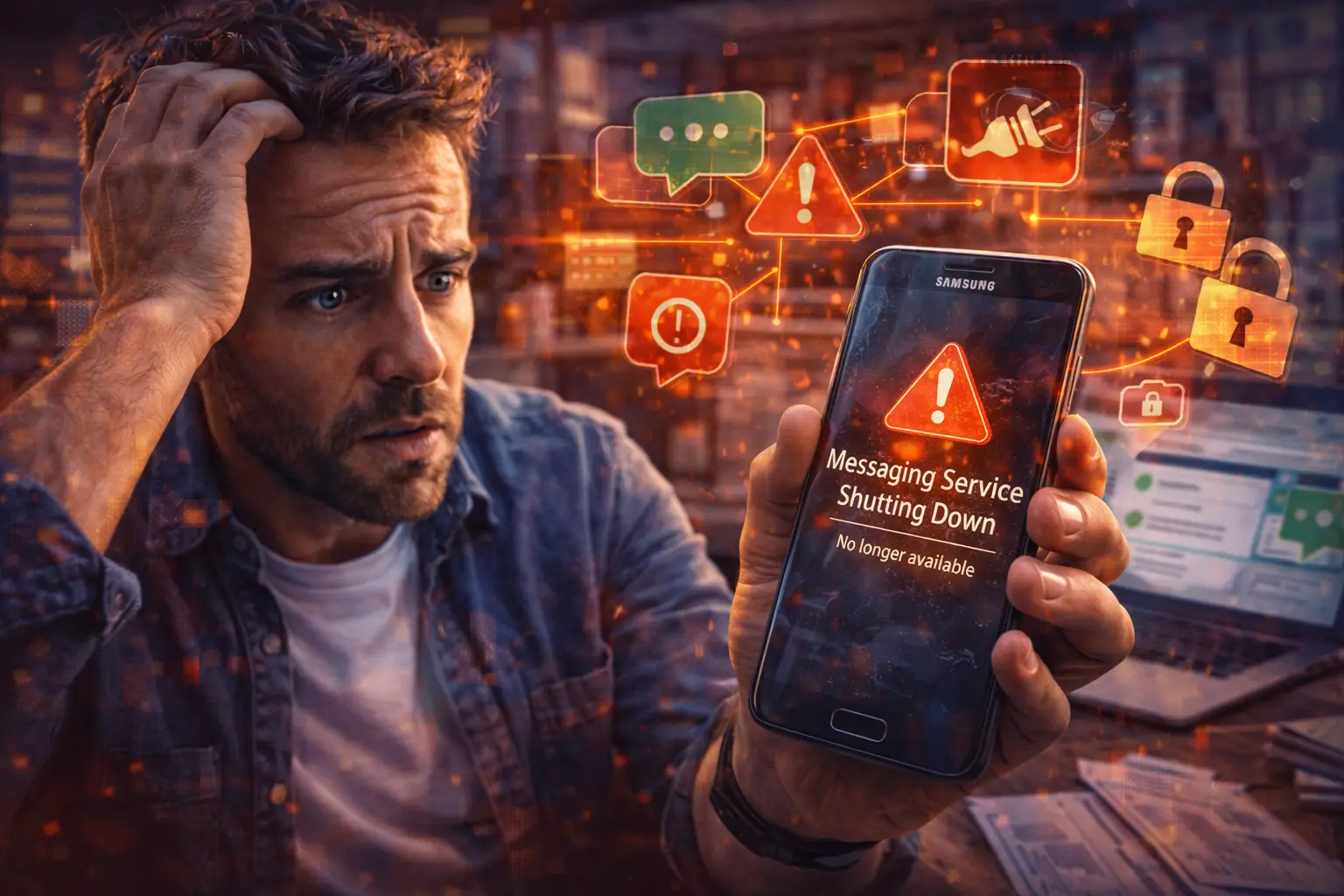
Someone on your team has a Samsung Galaxy phone. Customers text it to confirm appointments, your bank texts it a sign-in code, and a supplier texts it when a delivery is late.
Then the texting app on that phone stops working.
That's what Samsung's change means. Samsung has ended its own Samsung Messages app and is moving Galaxy users to Google Messages. The switch itself takes a few minutes. The cost is in the gaps: a missed customer text, a sign-in code that never shows up, a staff member who taps a fake "update your messages app" link.
The quick answer
- On each Galaxy phone used for work, install Google Messages from the Google Play Store (it's already there on newer Galaxy phones).
- Make it the default texting app. Open Google Messages and accept the prompt, or go to Settings > Apps > Choose default apps > SMS app and pick Messages (the Google one).
- Open a few old conversations to check your history came across.
- Turn on RCS chats in Google Messages so texts can go over Wi-Fi and data.
- Tell staff: the switch only happens inside the phone or the Play Store. Any text or email with a link to "update Samsung Messages" is a scam.
What Samsung announced
Samsung posted an "End of Service Announcement" for Samsung Messages on its U.S. site in April 2026. Per that notice:
- Samsung Messages was discontinued in July 2026. Samsung said to check the app itself for the exact date on your phone.
- Samsung recommends Google Messages as the replacement.
- Phones on Android 11 or older aren't affected.
This was a long time coming. Samsung has shipped Google Messages as the default texting app on its newer Galaxy phones for a while, so many of your staff may have switched without noticing.
How to tell which app a phone is using
Two quick checks on each work phone:
- Look at the app. Both apps can show up as just Messages, which doesn't help. Open it: Google Messages shows your profile picture or initial in the top right corner, the same as other Google apps.
- Check the default. Go to Settings > Apps > Choose default apps > SMS app. Whatever is selected there is what receives your texts.
Also check the Android version: Settings > About phone > Software information > Android version. Android 11 or older isn't affected by the shutdown, but a phone that old has bigger problems. More on that below.
Switching a phone to Google Messages
1. Install Google Messages
Open the Play Store, search for Google Messages and make sure the developer listed is Google LLC. Install it if it isn't already there.
Samsung's notice says Samsung Messages may also show an in-app prompt that walks you through the switch. Use that if you see it.
2. Make it the default texting app
Google's help page gives two ways:
- Open Google Messages. When it asks to become your default messaging app, follow the prompts.
- Or go to the phone's settings, open the apps list, pick Messages (Google's), tap the SMS entry and choose Messages.
On most Galaxy phones the shortcut is Settings > Apps > Choose default apps > SMS app.
3. Check your history
Open the conversations that matter: your top customers, your bank, the office manager. If an old thread is missing, stop there and get help before you uninstall or reset anything.
If a text thread is part of a business record (a customer approving a quote, say), take screenshots before you switch. A text thread is a poor filing system anyway.
4. Turn on RCS chats
RCS is the newer texting standard: typing indicators, read receipts, better photos, and messages over Wi-Fi when the cell signal is weak. Google's steps (Turn on RCS chats):
- Open Google Messages.
- Tap your profile picture or initial, then Messages settings.
- Tap RCS chats and turn it on.
It only works with people who also have it on. Everyone else still gets a normal text. Google also warns against switching RCS on and off repeatedly, because you'll be removed from group chats.
5. Send a test
Text another phone in the office and ask a customer-facing employee to confirm they still get appointment replies. Then try something that sends a sign-in code by text, so you know those still arrive.
Why this matters more than it sounds
For a business, texting isn't just chat. On a lot of small-team phones it's:
- Customer communication: appointment confirmations, "running late", photos of the job.
- Sign-in codes: banks, payroll and email accounts that send a code by text.
- Vendor updates: delivery windows, invoice questions.
If one phone stops receiving texts, nobody notices until a customer says "I texted you twice."
And when every phone is set up by its owner, you get five phones with five different setups. Changes like this one are where that shows.
Watch for the scam version
Every big app change gets a scam that copies it. Fox News reported that scammers were already using the Samsung Messages shutdown as a lure.
The real switch never needs a link. Tell your team:
- Samsung and Google won't text or email you a download link for this. Install from the Play Store or use the prompt inside the phone.
- No app needs your bank login, Microsoft 365 password or a payment to "keep your messages."
- Block and report anything that does, using the block and report-spam option in Google Messages, then delete it.
Our guide to what to do when you get a scam text has the full steps.
If something already went wrong
- Texts stopped arriving: check the default SMS app (step 2). That's the cause most of the time.
- Sign-in codes aren't coming through: same check first. If the account allows it, switch that account to an authenticator app instead of text codes. That's safer anyway.
- Someone tapped a fake update link: don't enter anything else. Uninstall any app that came from outside the Play Store, change any password they typed in, and tell whoever handles your IT today.
- A phone is on Android 11 or older: it may keep Samsung Messages, but it's also likely past the end of its security updates. Plan to replace it.
Keeping business phones from surprising you
- One texting app for the team. Google Messages on every Android work phone. Write it down.
- One person checks new phones. Default apps, screen lock, updates on, before the phone goes into use.
- Keep a short list of which phones are used for work, who has them, and what accounts send codes to each.
- Move important sign-ins off text codes where you can. An authenticator app doesn't care which texting app you use.
- If your company phones are managed (Microsoft Intune or Samsung Knox, for example), have whoever manages them push Google Messages to every device instead of asking people to do it themselves.
The one-line staff rule: app updates come from the Play Store, never from a link in a text.
When to get help
- You have more than a handful of Android phones and no list of who has what.
- Texts or sign-in codes stopped working and the default-app check didn't fix it.
- Someone entered a password or installed something from a fake update message.
If that's you, get in touch.
Related reading
- 5 steps to take when you get a scam text message
- Your phone might be giving away more than you think (until now)
- How to spot a fake Microsoft login portal
Originally published April 2026. Updated October 2026.

No comments yet