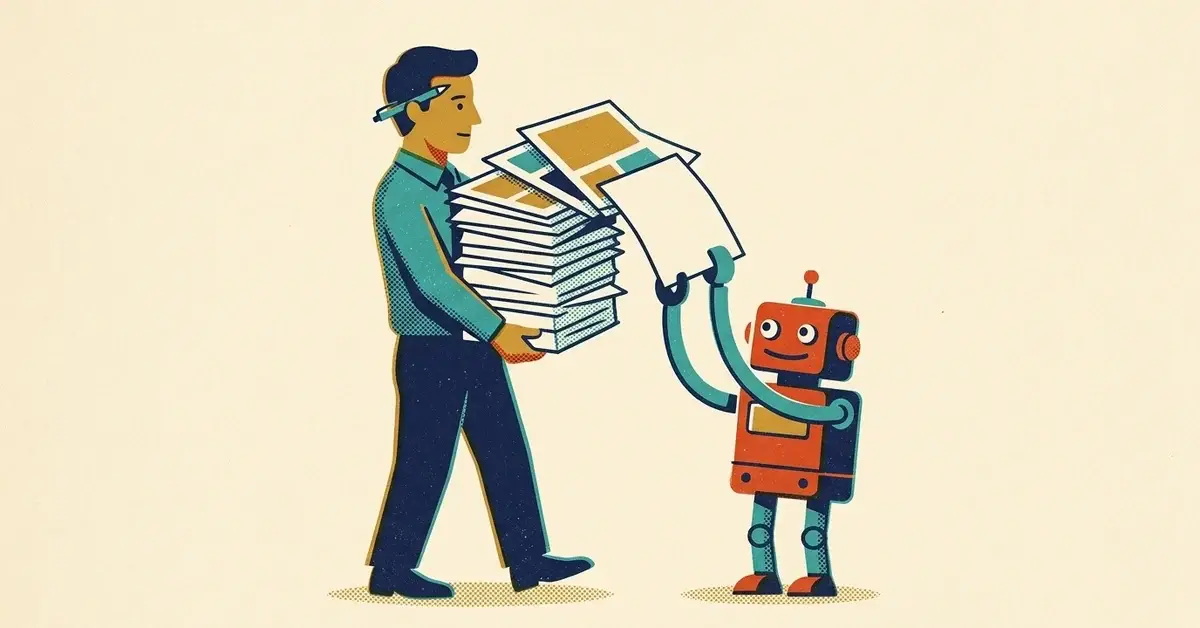
Five people. Seven jobs. An inbox that refills faster than anyone can empty it.
That's the usual small-business week, and the cost shows up in places you can count: quotes that go out two days late, invoices nobody chased, and one good employee who stops answering messages after 6 p.m. because they've finally had enough.
AI can take some of that load off. Not all of it, and not by itself. This post covers the jobs it handles well, the ones it doesn't, and a two-week way to try it on your team without making things worse.
The quick answer
- Hand AI the first drafts and the summaries. Email replies, meeting recaps, a messy page of notes turned into a checklist.
- Keep people on anything with a name, a number or a promise in it. Prices, dates, contract terms, anything a client will hold you to.
- Use the tool you already pay for. Microsoft 365 and Google Workspace business plans come with some AI.
- Pick one task per person, not one tool for everyone. Two weeks, then ask what actually got faster.
Where the hours go
Ask your team what eats their week and you'll hear the same four things.
- Reading long email threads to find the one line that matters
- Writing the same follow-up for the tenth time
- Typing up what was said in a meeting
- Starting from a blank page
All four are language jobs, and language is what generative AI is good at. (If the term is new, What Is Generative AI and Why Should You Care? explains it in plain English.)
It is much worse at the rest of the week: judgment calls, customer relationships, anything that needs to be right the first time.
What to hand off, and what to keep
Hand off, then read before it goes anywhere:
- Summaries of long email threads and documents
- First drafts of routine replies and follow-ups
- Meeting notes and a list of action items
- Reworded messages (friendlier, firmer, shorter)
- A first pass at a social post or a how-to
Keep with a person:
- Quotes, invoices, totals and dates
- Anything that promises something to a client
- Hiring, firing and anything about a person's performance
- The final send. AI drafts, a person sends.
The reason is simple. AI writes confidently whether it's right or not. Microsoft's own developer documentation lists "hallucinations" first among the limits of large language models: output that is factually incorrect or not grounded in anything real. A confident wrong date in a client email costs you more than the five minutes you saved.
What AI Tasks Should I Never Automate in a Small Business? goes through that second list in more detail.
What you probably already have
Before anyone signs up for a new tool, check your current plan.
Microsoft 365. Microsoft says Copilot Chat is available at no extra cost for eligible users who sign in with a work account on Business Basic, Business Standard or Business Premium. The same page is clear that Copilot features inside the Office apps, access to your company data and more advanced options depend on your licensing and your admin's settings. So two people on the same plan can see different buttons. Check what's actually turned on in your tenant before you promise your team anything.
Google Workspace. Workspace plans include Gemini features too, and which ones you get varies by plan. Check your plan's feature list rather than assuming.
Use the work account, not a personal one. Business plans keep your data under your company's agreement with the vendor. A free personal account may not. Who Owns the Data I Feed Into AI? covers what that means for client information.
Try it for two weeks
Don't roll this out to everyone on Monday. You'll get five people using it five different ways and no idea what worked.
Week 1: one task each
Ask each person to name the one task they like least and that comes up most. Write it down. Common answers: replying to the same kinds of email, writing up meetings, weekly status updates.
Have them note how long it takes now. A sticky note is fine.
Week 2: same task, with AI
They draft it with Copilot Chat or Gemini on their work account, edit it, and send it. They time the whole thing, including reading the draft and fixing it.
Here's a prompt to start with:
"Summarize this email thread in five bullet points. List any dates or amounts mentioned. List anything I've been asked to do. Don't guess at anything that isn't in the thread."
The last sentence matters. It won't stop every mistake, but it cuts down on invented details.
End of week 2: ask three questions
- Did it get faster once checking is counted?
- Did it get better, worse or about the same?
- Would you keep doing it this way?
If the answer is no, drop it. That's a fine result. You spent two weeks finding out for free.
Why it doesn't fix burnout on its own
This is the part the sales pages skip.
If the real problem is that the business has more work than people, a faster email draft doesn't change that. It gives you back a few hours. What happens to those hours is a management question.
Two things go wrong:
- The saved time gets filled instantly. Someone finishes the report in half the time, so now they have a second report. Nobody is less tired.
- Checking becomes its own chore. If staff have to proofread everything AI writes, you've swapped writing for editing. Some people find that easier. Some find it more draining.
So decide up front what the time is for. Fewer late nights? Faster quote turnaround? A proper lunch? Tell your team. If the answer is "more output", say that out loud too, so nobody is surprised.
Setting it up for a small team
- One approved tool, on work accounts, so nobody pastes client details into a free personal app.
- A shared document of prompts that worked, so people don't start from scratch.
- One rule: AI drafts, a person sends. Nothing goes to a client unread.
- A list of things that never go in. Passwords, full card numbers, anything under an NDA, anything covered by privacy law in your industry.
- A check-in after a month. Which tasks got faster? Drop the rest.
When to get help
- You're not sure which AI features your Microsoft 365 or Google Workspace plan includes, or they aren't showing up for your users.
- Staff are already using personal AI accounts for client work.
- You want AI connected to your email, calendar or shared files and need the permissions set up so it can't see more than it should.
If any of that sounds like your office, we can help.




No comments yet