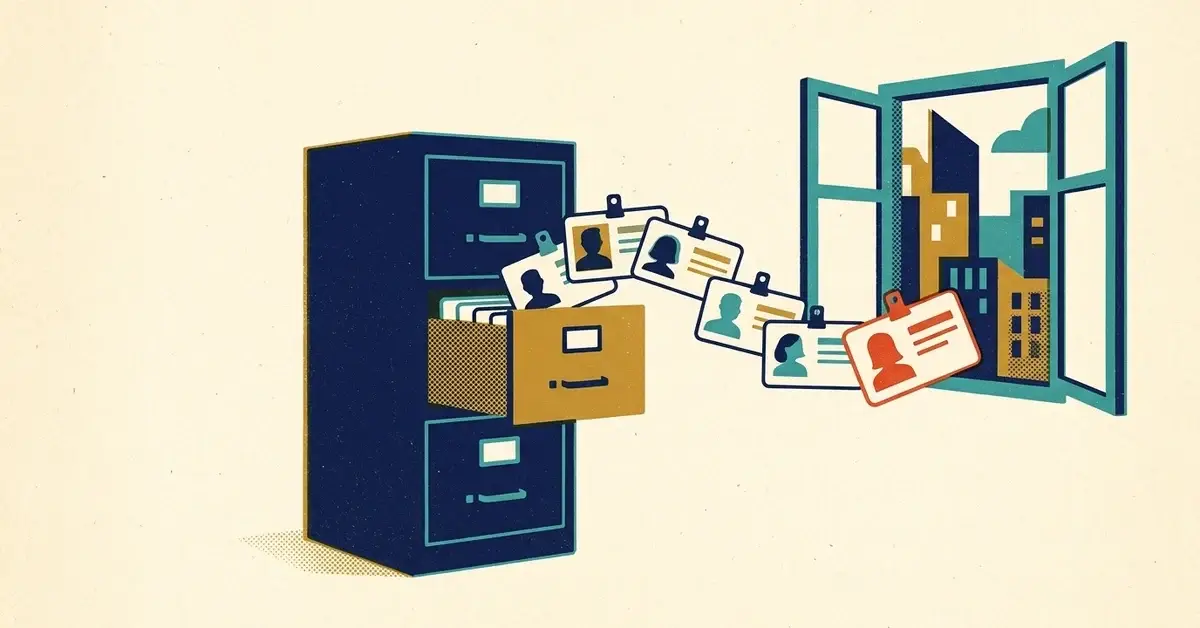
In September 2025, Boyd Gaming, the Las Vegas casino company, told investors that someone had taken data about its employees out of its IT systems. Within days, a former employee had sued.
You don't run a casino. But you almost certainly keep the same kind of data: names, dates of birth and Social Security numbers for everyone you've ever put on payroll.
This post covers where that data hides in a small business, how to lock it down this week, and what to do if it's already out.
What happened at Boyd Gaming
The short version, from the company's filing and news coverage of the lawsuits:
- On September 23, 2025, Boyd Gaming filed a Form 8-K with the SEC saying an unauthorized third party had removed data from its IT systems, including information about employees and a limited number of other people. Boyd said its business operations weren't affected.
- A former employee then filed a proposed class action in federal court in Nevada. According to the complaint, the stolen data included names and Social Security numbers, and Boyd hadn't told employees about the breach and didn't protect the data well enough.
- More than a dozen more suits followed within about two weeks, according to the federal court docket, CDC Gaming Reports and Yogonet.
Those are claims in a complaint, not findings. In October 2025 the court combined the cases into one, In re: Boyd Gaming Corp. Breach Litigation, and as of January 2026 it was paused while the parties tried private mediation (court docket). There's been no ruling on the merits.
The lesson doesn't depend on how the case ends. Employee records are a complete identity-theft kit. And the people they belong to can take the business that lost them to court.
The quick answer
If you only do five things this week:
- Find every copy of employee Social Security numbers: payroll, HR folders, email, scans, paper.
- Delete the copies you don't need. Your payroll provider already has the numbers. Your inbox doesn't need them.
- Lock down what's left to the one or two people who need it.
- Turn on multi-factor authentication (a code or app prompt on top of the password) for payroll, email and wherever HR files live.
- Write a one-page plan for who does what if the data gets out.
That's roughly the order the FTC uses in Protecting Personal Information: A Guide for Business: take stock, scale down, lock it, pitch it, plan ahead.
Where employee data hides in a small business
Most small businesses don't have one HR system. They have half a dozen places where a Social Security number got typed, scanned or attached once and never cleaned up.
Check these:
Where | What's usually there |
|---|---|
Payroll provider | SSNs, bank details, tax forms. Usually the best-protected copy. |
Email (sent items and attachments) | W-4s, I-9 copies, scanned driver's licenses sent "just this once" |
Shared drive, OneDrive or Google Drive | "HR" or "New hires" folders, onboarding PDFs |
Downloads folder and desktop | Exported payroll reports, scans |
Accounting software | Contractor tax IDs and 1099 details |
Filing cabinet | Paper I-9s, applications, old personnel files |
Old PCs and the office copier | Saved scans and local copies |
That last row gets missed. Many office copiers and multifunction printers have a hard drive that stores data about the documents they copy, print and scan, which is why the FTC has a separate guide to copier data security.
Step-by-step: lock it down
1. Take stock
Search for the files.
- Microsoft 365: search Outlook, OneDrive and SharePoint for "W-4", "I-9", "SSN" and "Social Security".
- Gmail: search
W-4 OR I-9 OR "social security" has:attachment, then check Google Drive with the same words.
Write down where each copy lives. A simple list is fine: location, what's in it, who can open it.
2. Scale down
If there's no business reason to keep a copy, delete it. Keep the copy in your payroll system. Delete the scans in email, Downloads and the desktop, and empty the deleted items folder afterwards.
Before you shred paper, ask your accountant or payroll provider how long you have to keep each form. I-9s and tax forms have their own retention rules.
Two habits to stop:
- Using Social Security numbers as employee ID numbers. Give people a separate ID.
- Collecting the number earlier than you need it. Payroll needs it at hire, not on the application.
3. Lock it
Move what's left into one place and limit who can open it.
- OneDrive or SharePoint: select the folder, then Manage access. Remove any "Anyone with the link" or "People in your organization" links and share it with named people only.
- Google Drive: right-click the folder, choose Share, and set General access to Restricted.
- Paper: a locked cabinet, with the key held by one person.
Then encrypt the laptops that touch payroll, so a stolen laptop is a hardware problem and not a data breach.
- Windows 11: Settings > Privacy & security > Device encryption (Microsoft's steps). If that page isn't there, Windows 11 Pro has BitLocker: search the Start menu for BitLocker and select Manage BitLocker.
- Mac: System Settings > Privacy & Security > FileVault (Apple's steps). Apple says Macs with Apple silicon or a T2 chip already encrypt their data automatically; FileVault adds the requirement to sign in before it can be read.
4. Turn on multi-factor authentication
Three accounts matter most here:
- Payroll. Look under the account or security settings. Every major provider offers it; the menu names vary.
- Email. Whoever controls the inbox can reset the passwords for everything else.
- Cloud storage, if HR files live there.
On Microsoft 365, security defaults turn on multi-factor sign-in for everyone in one switch. Check it's on: in the Microsoft Entra admin center, go to Entra ID > Overview > Properties > Manage security defaults. If that page says you're using Conditional Access policies instead (common on Business Premium), security defaults can't be on at the same time, so check those policies require multi-factor sign-in for everyone.
5. On Business Premium, let Microsoft watch for SSNs
Data loss prevention (DLP) is a Microsoft 365 feature that scans email and files for things like Social Security numbers and warns or blocks when they're about to leave the company. For Exchange, SharePoint and OneDrive it comes with Microsoft 365 Business Premium (and E3/E5), not Business Basic or Standard, according to Microsoft's Purview service description.
To set one up:
- Sign in to the Microsoft Purview portal.
- Go to Data loss prevention > Policies > Create policy, then choose Enterprise applications & devices (Microsoft's steps, as of November 2026).
- Under Categories choose Privacy, then pick U.S. State Social Security Number Confidentiality Laws.
- Keep the email, SharePoint and OneDrive locations.
- Leave it in simulation mode for a couple of weeks and look at what it catches before you switch it on.
Out of the box, that template notifies when content with Social Security numbers is shared outside the company, and blocks larger batches (10 or more numbers), per Microsoft's template reference.
6. Pitch it
- Shred paper you no longer need to keep.
- Before an old PC leaves the building, wipe it. Windows 11: Settings > System > Recovery > Reset PC, choose Remove everything and turn on Clean data, which cleans the drive, not just your files (Microsoft's steps).
- Ask your copier leasing company how they wipe the hard drive before a machine goes back.
7. Plan ahead
One page is enough:
- Who decides, and who calls your IT provider.
- Your cyber insurance policy number and claims line, if you have one. Many policies want a call before you hire anyone yourself.
- A lawyer you can call about notification.
- Where the employee contact list lives, so you can reach people quickly.
Why this data is worth stealing
A name, date of birth and Social Security number are enough to open credit in someone's name or file a fake tax return to steal their refund.
For the business, the cost comes from several directions at once:
- Notification. Every U.S. state has a data breach notification law, according to the National Conference of State Legislatures, and they differ on timing and who has to be told.
- Lawsuits like the ones Boyd is facing, which often claim the business was negligent or slow to warn people.
- Help for the people affected. Businesses often pay for credit monitoring.
- Trust. Your staff gave you that number because they had to.
If it's already gone wrong
- Contain it. Change passwords, sign everyone out, and call whoever handles your IT.
- Call your insurer if you have cyber coverage.
- Follow the FTC's Data Breach Response: A Guide for Business and talk to a lawyer about your state's notice rules.
- Tell your people what to do. Three free steps protect them most:
- Freeze their credit at Equifax, Experian and TransUnion. Freezes are free (FTC).
- Get an IRS Identity Protection PIN, which stops anyone else filing a return with their number. As of November 2026, the IRS says its online IP PIN system is offline for maintenance until mid-January 2027. The same page explains the other ways to apply, including in person at a Taxpayer Assistance Center.
- Report misuse at IdentityTheft.gov.
Preventing it in a business
- One staff rule: never email a Social Security number. It goes straight into payroll, or it's handed over in person.
- Train the people who handle payroll to spot phishing. A fake "update your direct deposit" email is a common way in. More on that in why social engineering still works.
- When someone leaves, remove their access the same day. What happens when you don't.
- Ask your payroll and HR vendors how they protect your data. A breach at a vendor still lands on your employees, as this post on third-party breaches explains.
When to call someone
- You found Social Security numbers in more places than you can clean up in a day.
- You see signs someone is already in: sign-ins you don't recognize, new inbox rules, changed bank details in payroll.
- You pay for Business Premium but nobody has set up DLP or checked that multi-factor sign-in is on.
If you'd like a hand with any of it, talk to us.
Related reading
- How to protect yourself from a data breach: steps for individuals and businesses
- The breach that hurts you probably won't be yours
- One phishing email, thousands affected
Originally published October 2025. Updated November 2026.




No comments yet