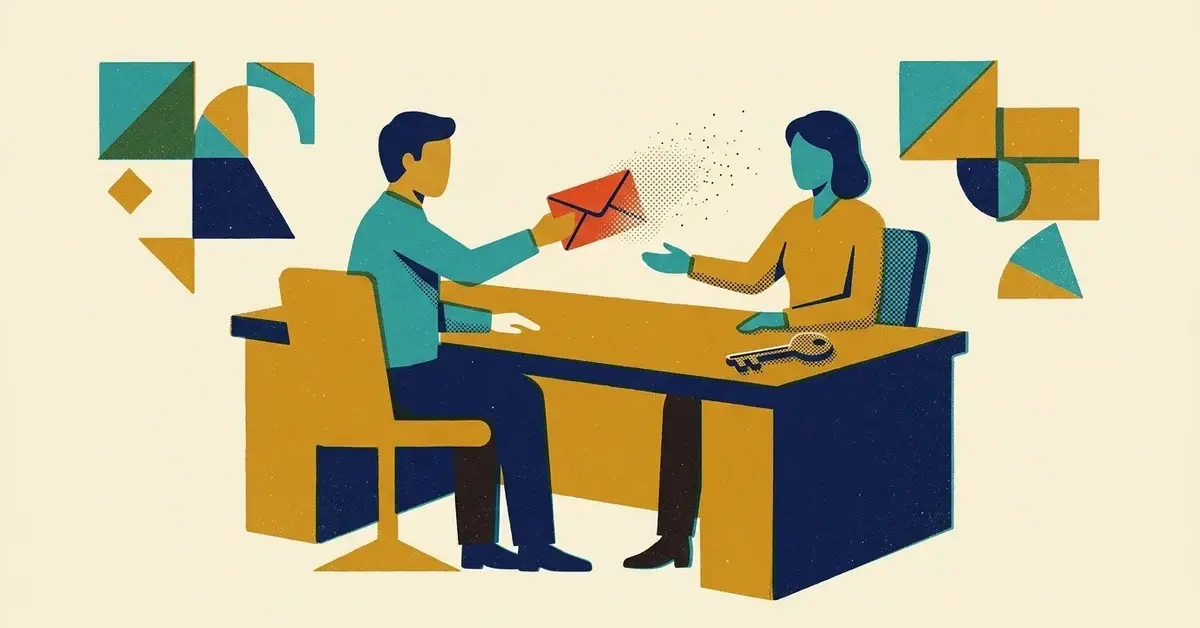
You need to send a client their new login. Or a new hire needs the Wi-Fi password, or your accountant wants the bank details. So you type it into an email, hit send and move on.
Here's the deal: that email now lives in your Sent folder and their inbox, probably for years. If either mailbox is ever broken into, searching for "password" is the first thing an attacker tries.
There's a better way, and you likely already pay for it. Most password managers can send a private, self-deleting link.
The quick answer
- Open your password manager and use its share or send feature (Bitwarden calls it Send, 1Password calls it Share).
- Set the link to expire in a day or less, and to a single view if you can.
- Add a password or restrict it to the recipient's email where the tool allows.
- Send the link by email and the password another way (text or a phone call).
- Never put the password and the thing it unlocks in the same message.
What a secure share actually does
When you share through a password manager, the secret isn't sitting in the email. The email (or text) only carries a link. The content behind it is encrypted, and the link stops working after the time or number of views you set.
So if someone gets into that inbox next year, they find a dead link. Not your client's bank login.
Think of it like handing someone a key in person instead of taping it to their front door.
Option 1: Bitwarden Send
Bitwarden's Send feature works on the free plan for text. Sending files needs a paid plan.
- In the Bitwarden app or web vault, go to Send and create a new Text Send.
- Paste the message or password.
- Under the options, set the deletion date (Bitwarden's Send lifespan page says the maximum is 31 days; pick something much shorter).
- Set Limit views to 1 or 2.
- Add a password for the Send.
- Copy the link and send it. Text or call with the password.
Once the view limit or deletion date is hit, the link shows a page saying the Send no longer exists.
Option 2: 1Password item sharing
1Password lets you share a copy of an item with a link, and the recipient doesn't need a 1Password account to open it.
- Open the item (a login, a note, a document) and choose Share.
- Set when the link expires: 1 hour, 1 day, 7 days, 14 days or 30 days.
- Choose who can open it: anyone with the link, or only specific email addresses. With specific addresses, the recipient gets a one-time code by email before they can see it.
- Tick the option to let it be viewed only once, if you want that.
- Copy the link and send it.
On a 1Password Business account, your administrator's sharing policy decides which of those options you see. The person gets a snapshot of the item as it was when you shared it, so changing the password later won't update their copy.
Using a different password manager?
Most business password managers have something similar. Search its help pages for "share" or "send". Some only share with other users of the same product, and some keep the feature on paid plans, so check before you rely on it.
Why this matters more than it used to
Two things are pushing in the same direction.
Inboxes get breached. Email logins get phished, and a breached mailbox hands over everything in it. Old emails with passwords in them are a gift.
Messaging privacy is being argued over. Since May 2022 the EU has been negotiating a law, nicknamed "Chat Control", that in its original form could require messaging services to scan private messages for child sexual abuse material, including on encrypted apps. As of October 2026, the permanent law still hasn't been agreed; the European Parliament and EU governments disagree over whether scanning should be mandatory or only targeted. What ends up in it, and when, isn't settled. The EUR-Lex procedure page tracks the official stages.
You don't have to follow EU politics to act on this. The practical point is the same either way: the less sensitive stuff that sits in ordinary message history, the less there is to leak.
If you've already emailed passwords
You're in very good company. Do this:
- Change any password you've sent by email or chat that's still in use. Start with email, banking and anything with client data.
- Delete the old messages from Sent and Inbox, then empty Deleted Items.
- Turn on multi-factor authentication on those accounts so a leaked password alone isn't enough.
Not sure which ones? Search your own mailbox for "password", "login" and "pw". If you can find them, so could anyone who got in.
Make it a rule in your business
One line for the team:
Passwords, bank details and ID documents go by password-manager link only, set to expire, never in email or chat.
Then make it easy to follow:
- Give everyone a business password manager account, not a mix of personal ones.
- Show each person how to make a Send or Share link. It's quicker than it sounds.
- When a client needs to send you something sensitive, a phone call beats an email reply.
When to call someone
- You're not sure who has which passwords, or staff share one login between them.
- You've found passwords sitting in old email threads and don't know what to change first.
- You want a password manager rolled out to the whole team with proper admin control.
If you'd like help setting that up, talk to us.
Related reading
- Old Data Breach? How to Check if Hackers Are Using Your Leaked Passwords (Credential Stuffing)
- WhatsApp Is Encrypted… So Why Are Privacy Concerns Growing?
- The Microsoft 365 Security Settings Small Businesses Never Turn On
Originally published September 21, 2025. Updated October 2026.


No comments yet