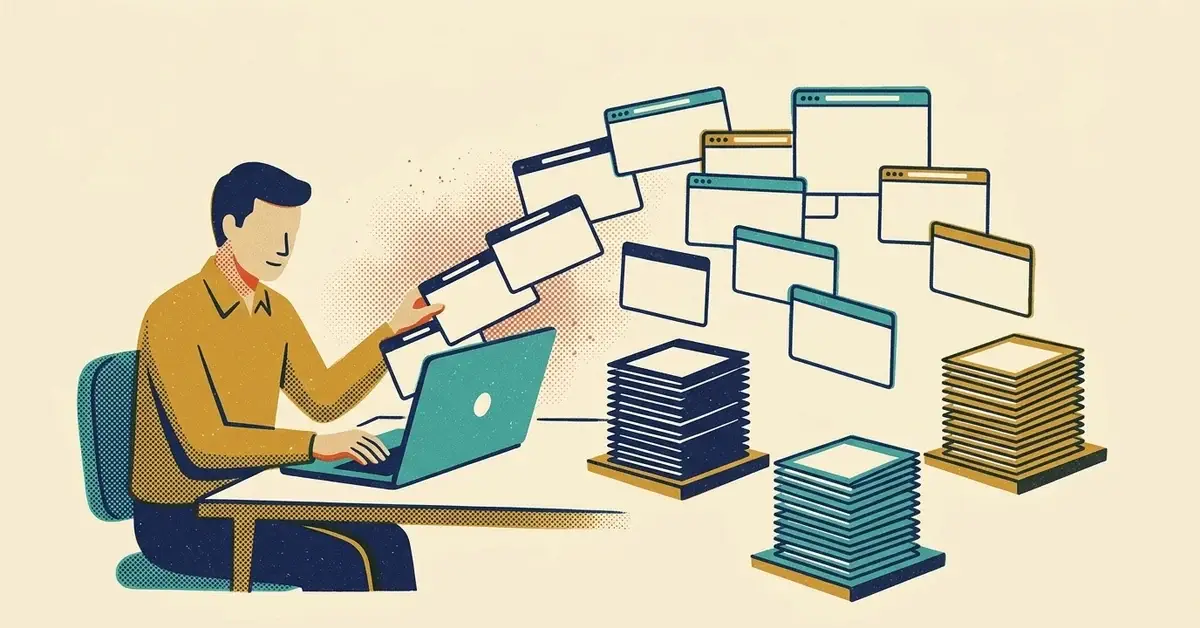
Email in one tab. The scheduling system in another. A client's PDF, two supplier sites, the accounting software, a half-written quote. And somewhere in there, the tab you actually need.
In a small team, that juggling eats the day. Not in one big chunk. In a hundred small "where was that?" moments.
AI can help with some of it. But a few plain browser settings fix more of the problem, for free, in five minutes. Start there.
The quick answer
- Group your tabs by job (one group per client or task) and collapse the ones you're not using.
- Turn on tab sleeping so idle tabs stop slowing the computer down.
- Use tab search instead of hunting along the top of the screen.
- Use the AI you already pay for to summarize long pages, PDFs and email threads instead of reading them in full.
- Let meeting notes write themselves, then check them.
Which kind of tab problem do you have?
- "My computer crawls by mid-afternoon." That's a memory problem. Tab sleeping helps most.
- "I can't find anything." That's an organization problem. Tab groups and tab search.
- "I have tabs open because I haven't read them yet." That's a reading problem. This is where AI earns its place.
- "I keep switching between the same five apps." That's a workflow problem. Fewer tools, and AI inside the ones you keep.
Most people have all four. Fix them in that order.
Fix 1: Group your tabs
Chrome on a computer, per Google's tabs help page:
- Right-click a tab and select Add tab to group > New group.
- Name it ("Smith quote", "Payroll") and pick a color.
- Click the group's name to collapse or expand it.
- To put it away, right-click the group and select Close group. Google says a closed group isn't deleted; it's saved in the bookmarks bar or the menu, ready to reopen.
One group per client or job. When the job's done, close the group.
Fix 2: Find tabs instead of hunting
In Chrome, click Tab Search in the tab strip, or press Ctrl + Shift + A (Command + Shift + A on a Mac), then type a word from the page's name. Google's help page has the details.
It's faster than squinting at thirty tiny icons.
Fix 3: Let idle tabs sleep
Every open tab uses memory. Both main browsers can pause tabs you're not using and reload them when you click back.
Chrome: go to More (three dots) > Settings > Performance and turn on Memory Saver. Google's Memory Saver page lists three levels: Moderate, Balanced (recommended) and Maximum.
Edge: type edge://settings/system/managePerformance in the address bar and turn on Save resources with sleeping tabs. Microsoft's Edge troubleshooting guide says you can adjust the inactivity timer there and add sites that should never sleep, such as a phone system or a web app that needs to stay live.
If a page loses something you typed when you click back to it, add that site to the never-sleep list.
Fix 4: Use AI for the reading pile
This is where AI genuinely helps. Many open tabs are things you haven't read yet. A summary tells you whether you need to.
If you use Microsoft 365
Sign in to Edge with your work account and click the Copilot icon at the top right. Microsoft's Copilot Chat in Edge page says it can summarize the web page you're on, and its page content chart shows that includes PDFs and Outlook on the web, but not Office documents open in the browser. Signed in with a work account, you get Microsoft's enterprise data protection, shown by a shield icon.
Try: "Summarize this page in five bullet points. What, if anything, do I need to do?"
Copilot Chat comes with eligible Microsoft 365 plans and also works in Outlook and Teams with the email or chat you have open, according to Microsoft's Copilot overview.
If you use Google Workspace
Gemini in Gmail can draft and rewrite replies with Help me write (Google's guide), which saves a trip to a separate AI tab.
Use your work account, not a personal one
Use the AI that comes with your business account. A free personal tool in another tab is one more tab, and it may not keep your clients' details under your company's agreement. Our post on which AI tools employees can use covers the rules.
Fix 5: Stop taking meeting notes by hand
A notes tab during a call is a tab you're half-watching. If your plan includes it, let the meeting tool take notes.
Google Meet's Take notes for me creates a Google Doc after the meeting with quick notes, full notes and action items, saved to the organizer's Drive, per Google's Meet help page. It needs an eligible Workspace edition, and Google warns the summary "can be incomplete, inaccurate, or not generated," especially for meetings shorter than 15 minutes.
So read the notes before you act on them. Our post on AI meeting notes explains what they tend to miss.
Why the juggling happens
It's rarely one person's habits. It's usually the setup:
- Too many tools for one job. Quotes in one app, scheduling in another, invoices in a third.
- Nothing gets closed. Tabs stay open as a to-do list.
- No shared place for answers. People keep reference pages open because they can't find them again.
AI helps with the reading. It doesn't fix having seven tools where three would do. Our post on picking AI tools your team will actually use helps with the pruning.
Setting it up for a small team
- One browser for work, signed in with work accounts, so groups and settings follow people between computers.
- Tab sleeping on for everyone, with the phone system and other must-stay-live apps on the never-sleep list.
- One approved AI tool, through your Microsoft 365 or Google Workspace account.
- Check your extensions. Microsoft's troubleshooting guide notes extensions can cause high CPU use, and they can see more than you'd think. Our guide to checking browser extension permissions shows how.
- A one-line rule: close the group when the job is done.
When to get help
- Computers are still slow with only a few tabs open. That's often the hardware or something running in the background, not the browser.
- Copilot or Gemini features don't show up for your users, or you're not sure which ones your plan includes.
- You want browser settings, extensions and AI tools set the same way across the whole team.
If that's where you are, get in touch.




No comments yet