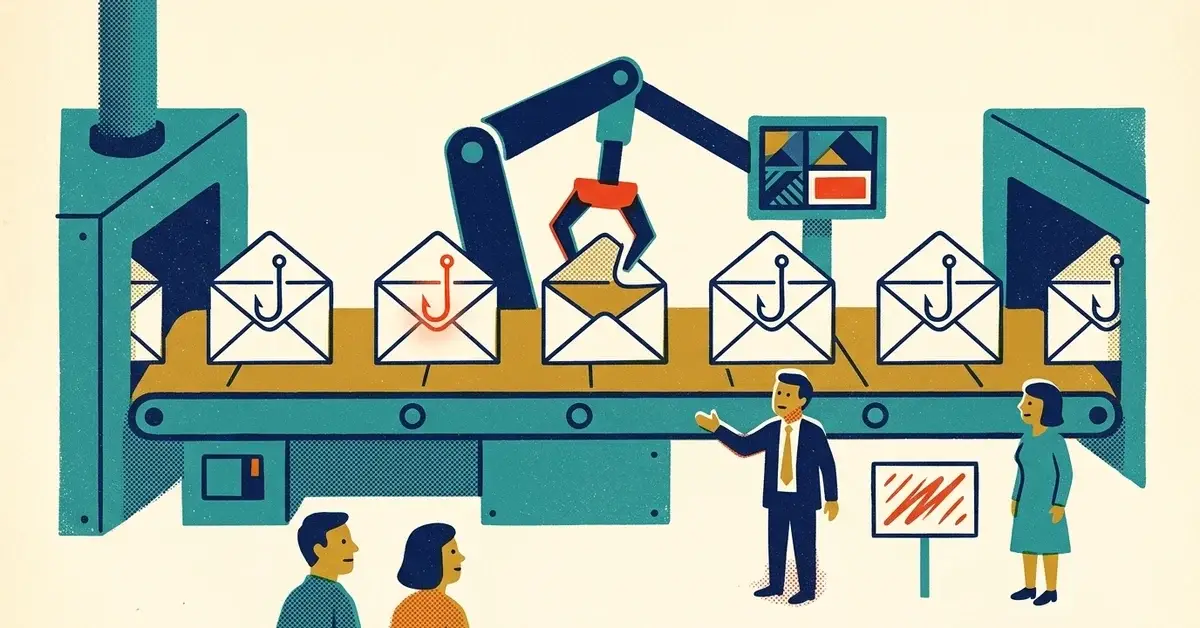
The email has no typos. The grammar is fine. The login page it links to looks exactly like Microsoft's, logo and all.
That used to be the hard part of running a phishing scam. Now AI does it in minutes.
Here's the deal: the old advice ("look for spelling mistakes") doesn't hold up anymore. What still works is checking what the message asks you to do and where the link actually goes, and setting up your logins so a fake page can't use what it collects.
The quick answer
- Stop judging by polish. A clean, well-written email proves nothing now.
- Look at the request, not the writing. Log in, pay, change bank details, open a "shared document": slow down.
- Don't log in from a link. Go to the site yourself, from a bookmark or by typing the address.
- Turn on passkeys or app-based MFA for email and banking. Passkeys won't work on a fake site at all.
- Report it with your email's Report button so your filters (and your coworkers) learn from it.
What changed: AI took the effort out of phishing
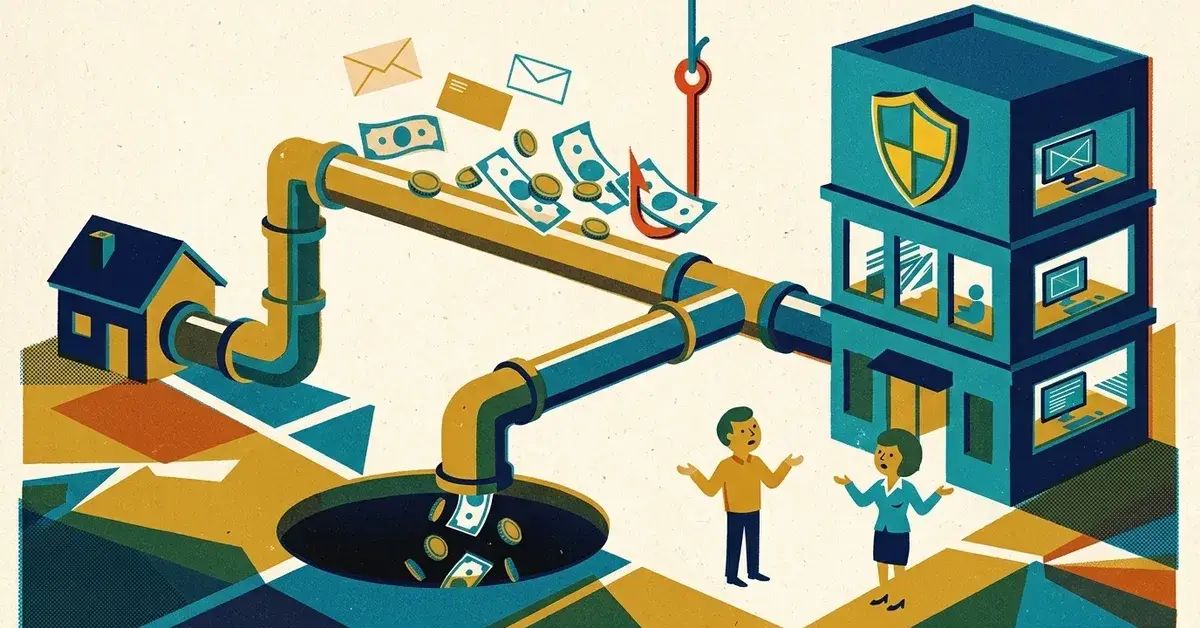
Researchers at Palo Alto Networks' Unit 42 looked at how criminals misuse AI tools for phishing (Unit 42, August 2025). Among the AI services they saw being misused, AI website builders made up about 40%, writing assistants about 30% and chatbots about 11%.
That 40% is the part worth noticing. These builders let anyone type a prompt and publish a website. Unit 42 found at least one that would publish a site without any email or phone verification. In their own test, a builder spun up a convincing fake site for a real cybersecurity company from a one-sentence description, in about a minute.
The FBI made a similar point in a December 2024 warning: generative AI cuts the time and effort criminals need, and it can clean up the spelling and grammar mistakes that used to give scams away (FBI PSA I-120324-PSA). Microsoft's own documentation says it plainly too: with AI-driven attack toolkits, these attacks are getting more sophisticated and easier to run at scale (Microsoft Learn).
So the scam email got a copy editor, and the fake login page got a web designer. Both work for free.
How to tell: what still gives it away
AI can fix the writing. It can't change what the scammer needs from you. Check these, in this order:
1. What is it asking you to do?
Almost every phishing message ends in one of these:
- Sign in (to "view a document", "keep your mailbox", "confirm your account")
- Pay something, or pay it somewhere new
- Change bank or payroll details
- Open an attachment or scan a QR code
- Approve a login or an app you didn't start
If a message asks for one of those, treat it as unverified until you've checked it another way. Polished or not.
2. Where does the link actually go?
On a computer, hover over the link (don't click) and read the address that shows in the bottom corner of your browser or email. On a phone, press and hold the link to preview it.
Read the main part of the domain, right before the first single slash. microsoft.com is Microsoft. microsoft.com.secure-login.net is someone else's site wearing a Microsoft name tag. If you're not sure, don't use the link. Our guide on how to spot a fake Microsoft login page goes through the details.
3. Did you expect it?
A "shared document" from a client you weren't working with. A password-expiry notice from a service you don't use. An invoice for something nobody ordered. Unexpected plus urgent is the pattern, and AI doesn't change it.
4. Is the timing or pressure off?
"Within 24 hours." "Your account will be closed." "Don't tell anyone yet, it's confidential." Pressure is there so you skip the checks above. That's the whole point of it.
The fixes, easiest first
1. Make "don't log in from a link" the office rule
Bookmark the sites everyone signs into (Microsoft 365, Google, the bank, payroll). If an email says you need to sign in, close it and use the bookmark. If there's really something waiting, you'll see it there.
It's boring. It also beats a perfect fake page every time, because you never land on it.
2. Turn on passkeys where you can
A passkey replaces your password with your phone, computer or a security key, unlocked with your fingerprint, face or PIN. The important part: Microsoft says a passkey "only works on the website or the app you created it for" (Microsoft Learn). A fake login page, however good it looks, can't use it.
- Microsoft 365: an admin turns on passkeys in the Microsoft Entra admin center under Entra ID > Security > Authentication methods > Policies > Passkey (FIDO2) (Microsoft Learn, as of October 2026). Staff then add one from their account's security info page.
- Google accounts: Google supports passkeys and says they're more secure against phishing (Google Account Help). On a Google Workspace account, your admin's settings decide whether a passkey alone is enough to sign in.
If passkeys aren't an option yet, use an authenticator app over text-message codes. And if your phone starts buzzing with sign-in requests you didn't make, read MFA fatigue attacks and how passkeys stop them.
3. Use a password manager, and notice when it goes quiet
Many password managers only fill in a login on the domain it was saved for (Bitwarden's default, for example, matches the base domain), so a lookalike address gets silence instead of your password. If yours suddenly doesn't offer to fill in your Microsoft password on a page that looks like Microsoft, stop and read the address bar. That silence is a clue.
4. Use the Report button
In Outlook, Microsoft provides a built-in Report button on virtually every version, and reported messages go to Microsoft, to a mailbox your admin picks, or both (Microsoft Learn). Gmail has Report phishing in the three-dot menu on an open message.
Reporting takes two seconds and helps the filter catch the next one. Forwarding the scam to the whole office "as a warning" mostly spreads the link around.
5. Add a second check for money
Any request to pay a new account, change bank details or buy gift cards gets confirmed by phone, using a number you already had, not one in the email. That one rule stops most invoice fraud, AI-written or not. How to spot AI-fake emails, videos and invoices covers voice and video fakes too.
If someone is copying your business
The same AI builders that clone Microsoft can clone a small business's website just as easily. Signs it's happening:
- Customers ask about emails, invoices or payment requests you never sent.
- Someone finds a site with your logo and wording on an address that isn't yours.
What to do:
- Tell your customers how you'll contact them and that you'll never change bank details by email.
- Report the fake site to Google Safe Browsing (report an unsafe page) so browsers can warn people about it.
- Report it to the host. Most website builders have an abuse report link in their footer. Use it.
- Lock down your email domain so scammers can't send as you. SPF, DKIM and DMARC is the fix.
If someone already clicked
- Didn't type anything? Close the page. Report the email. Run a scan with your security software.
- Typed a password? Change it now from the real site, sign out of all sessions, and check that MFA is still yours (no new phone numbers or apps).
- Check the mailbox for new rules. Attackers often add a rule to forward or hide mail. In Outlook on the web: Settings > Mail > Rules (Microsoft's steps).
- Paid something? Call your bank right away to try to stop or recall it, then report it at ic3.gov.
Preventing it in a business
- One rule: never sign in from an email link. Use bookmarks.
- One rule for money: new payment details get a phone call to a known number, every time.
- Passkeys or app-based MFA on every email account, starting with whoever handles money.
- The Report button turned on and explained to everyone, with no blame for reporting something that turns out to be real.
- Short, regular refreshers that show what current phishing looks like. Clean writing included.
None of this needs to spot AI. It works because it doesn't depend on the scam looking bad.
When to get help
- Someone typed their password into a fake page and you're not sure what the attacker can now reach.
- You want passkeys or MFA rolled out across the team without locking anyone out.
- Customers are getting invoices or emails pretending to be you.
If you're dealing with any of these, we can help.
Related reading
- How to Spot AI-Fake Emails, Videos and Invoices Before You Pay
- How to Spot a Fake Microsoft Login Portal: A Guide for Small Businesses
- Fake AI Extensions and Login Pages: How to Spot the AI Phishing Trap
Originally published September 7, 2025. Updated October 2026.

No comments yet